How it works
What you see on screen
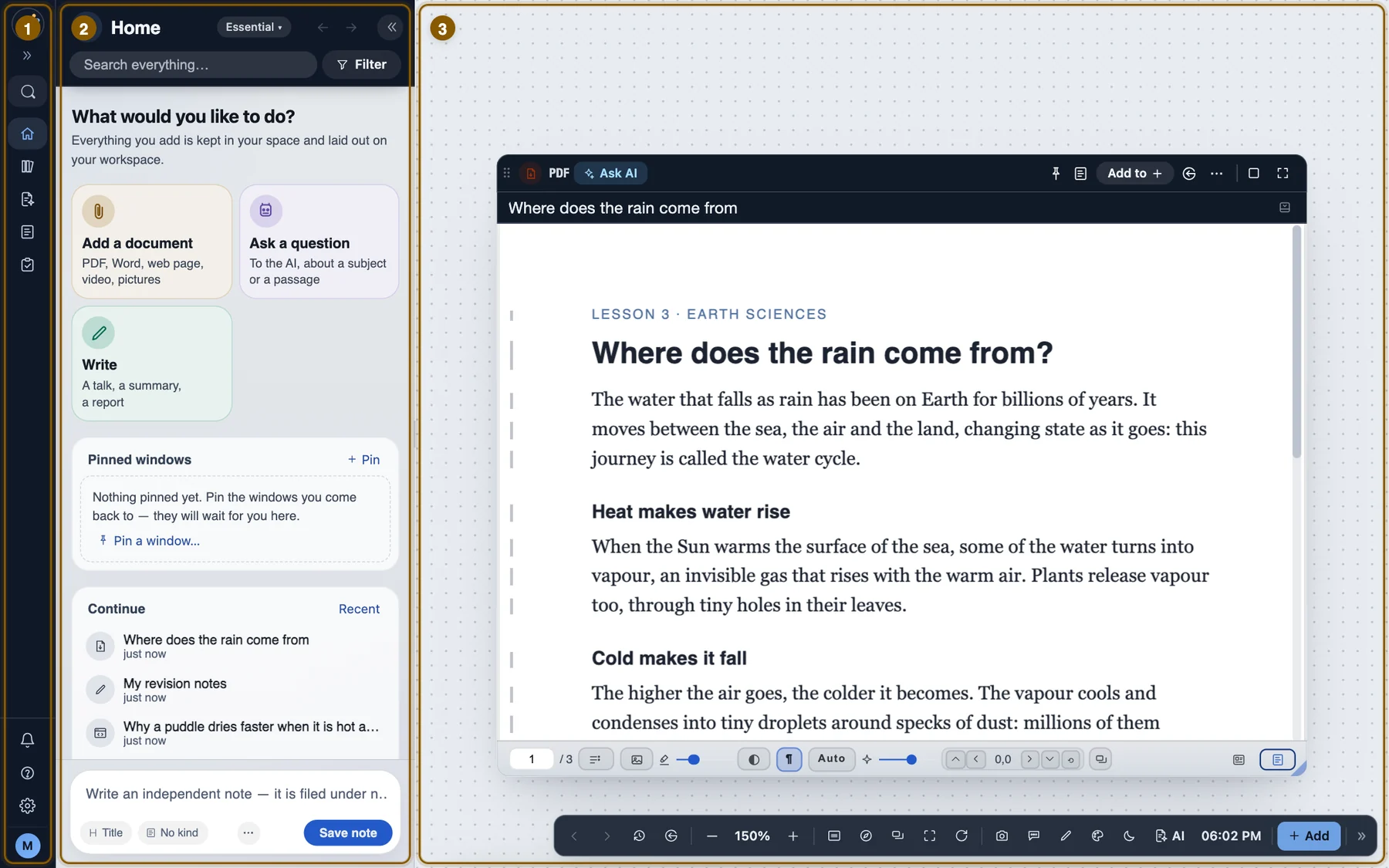
Orbital’s screen has three parts: the sidebar on the left, the list beside it, and the workspace where your windows stand.
In short
- The sidebar sorts everything: Home, Documents, Notes, Tasks, Projects and Knowledge. Search, at its top, finds anything.
- The list shows what you chose in the sidebar — your recent windows, your notes, your tasks — and Filter narrows it.
- The workspace is where you work: every document, question or page you write stands in it as a window.
How to move around
- Move a window. Drag its title bar. Its corner resizes it.
- Zoom. Pinch, hold Ctrl and scroll, or use − and + in the bar at the bottom of the workspace.
- Move the workspace. Drag the empty background. Fit brings every window into view; Map shows the whole workspace small.
- Add something. Add, at the right end of that bar, or right-click the empty workspace.
- Arrange your windows. Layout puts them side by side, one above the other, four in a grid, or one in focus; Free puts them back.
⌘K searches everything? then a button: what it does⌘\ folds the sidebar
Good to know
- Every window has a bar: Ask AI, Organize (projects, tags, tasks) and ⋯ for the rest — every button, explained.
- The level, at the bottom of the sidebar, shows more or less of the interface: Essential for the few things you need to start, Complete for everything.
- The tag map is in Knowledge ▸ Tag map, at the Complete level.