Reference
Every button, explained
Every button and menu line, with the words its own tooltip says. This page is read off the app, so it always matches the interface you have.
The sidebar
Where everything is sorted. A press opens its list in the column beside it.
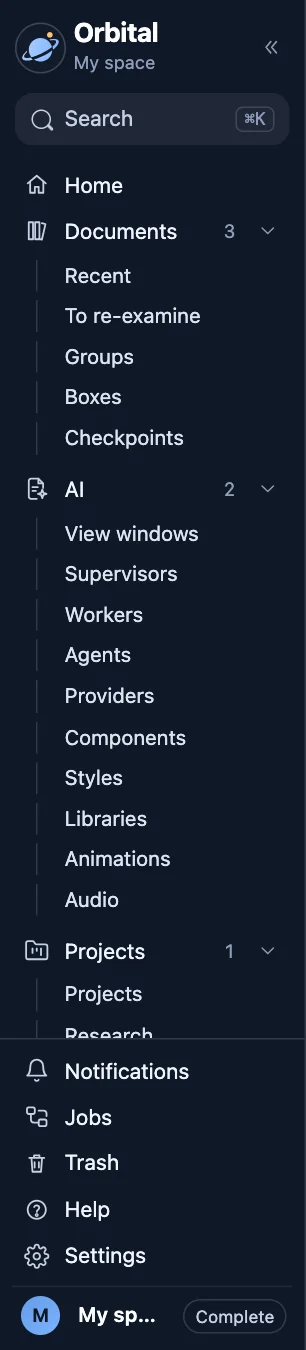
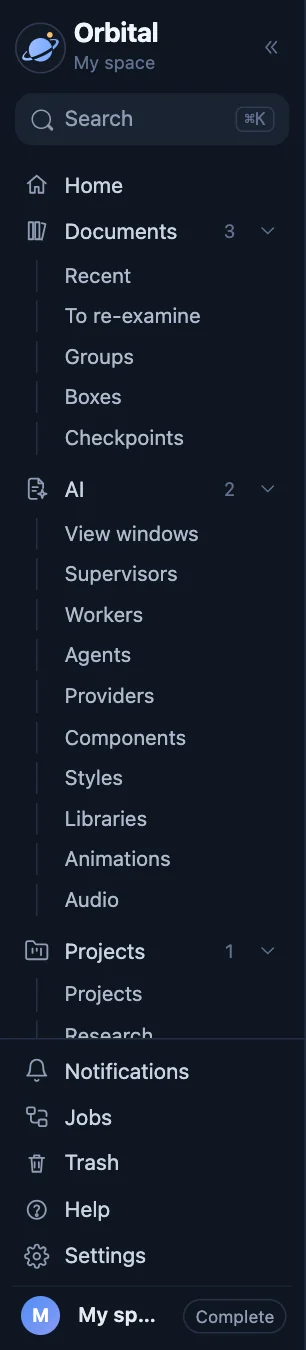
- Compress the sidebar and the list
- Fold the sidebar to its icons (⌘\)
- Search ⌘K
- Search: a window, a note, a tag or a command (⌘K)
- Home
- Where to start, what to continue, what is due
- Documents 3
- Everything you added: the recent windows, your groups, your boxes
- Recent
- The windows you added, grouped, the latest first
- What you marked to look at again
- a window from its top bar, anything else from its menu
- Groups
- Groups of windows
- Files kept aside in boxes, like folders
- open them as windows when you decide, or never
- Checkpoints
- Where you stopped in each tree of windows
- Ask the AI: your questions and their answers
- the answer in words here, a page it makes on the workspace
- View windows
- Every question asked of the AI and the pages it made
- The AI supervisors of your work
- talk to them here
- Workers
- Workers hired to make pages, decks and courses from what your work holds, and their tasks
- Coding agents that build and run tools on their own isolated machine
- their windows, the tools they made and their runs
- Outside services your agents can use
- hosting, domains, email, payments, data — connected with their keys or by signing in
- What your agents may build with
- components, libraries, packages and services, kept from missions or added by hand
- Every style and school on a real page
- preview them, try representations and colours, make your own
- Test each library the AI builds pages on
- a tutorial and tests run where your pages run — and tell the AI what the results show
- Every animation template your motion clips can use, with the library behind it
- test each in a clip of its own and choose how much your clips use it
- Test how a text sounds
- one text, a voice, and one parameter varied across values, every variant spoken and kept to compare
- Projects 1
- Projects and everything that groups your work
- Projects
- Your projects
- Research
- Studies of one question
- Experiments
- Things tried before committing to them
- An objective written in advance, and the orchestrators chosen for it, level by l
- then its supervisors
- Subjects
- Directions followed while reading
- Aims
- Purposes and goals
- Artifacts
- Everything your work has made: written, generated, built, deployed and published, in one place and sorted your way
- All
- Everything your work has made, of every kind
- Written
- The documents you wrote and the diagrams you drew
- Generated
- The pages, decks and clips the AI made, and the texts it spoke
- Built
- The tools your agents built, kept in versions, and the results of their runs
- Services
- What runs and answers: the live apps and services your agents made
- Deployed
- Websites and apps put at a public address: on Orbital, a website host or a platform
- Published
- The pages you published on your blog, with where each came from and a way to unpublish it
- Notes
- What you wrote down, and your ideas
- Notes
- Every note, grouped by what it is on
- Ideas
- Ideas, sorted by kind
- Highlights
- Every highlighted passage, what was done with it, and where it is used
- Tasks 2
- What you have to do
- Knowledge
- Your vocabulary, references, people, places and things
- Vocabulary
- Terms and ideas you keep
- References
- Sources and where you cite them
- People, places & things
- Everything your work is about
- Your tags: the tree, their groups, where groups cross, what is to do, and their map
- Every tag, as a tree, grouped by kind
- The groups your tags are sorted into, and their rules
- Groups crossed with each other, and what sits where they meet
- The places marked to do, by their state
- Tag map
- The map of your tags and what they hold
- Your catalogs
- a domain, a department, a client… — holding documents, terms, people, references and AI resources, and everything in your space sorted by type
- All
- Every catalog, as one tree
- By type
- Everything in your space, sorted by what it is: documents, vocabulary, people, places & things, references, tags, your work, notes, AI and files
- Activity
- Everything you have done in the app, day by day
- Tools
- Appearance
- Light or dark, the text size, the contrast
- Translate
- Translate a text
- Copied links
- The links to windows you copied, ready to paste
- Usage
- What the data, the AI and the storage cost
- Instant jump
- Clicks land on a window at once, with no glide
- Notifications
- what the app told you · Right-click to make them silent
- What your space runs for you
- imports and AI generations — and the ones that failed
- Trash
- Deleted windows, which you can restore
- Help
- The guide, and what every button does (press ? then any button)
- Settings
- Your settings: the interface, the AI, the appearance
- Your account
- your details, sign out
- Your account
- your details, sign out
- Complete
- The interface level: how much the interface shows
The list and its filters
What you chose in the sidebar: its section's views as tabs to switch between, and the ways to narrow it.
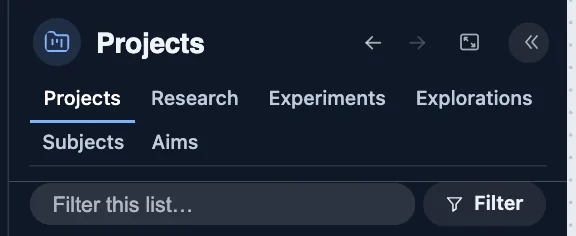
- Back to “Catalog”
- where you were before
- Next
- nothing to go forward to
- Fill the workspace by default
- every window you go to grows to take the whole view
- Compress the side column
- Projects
- Back to the list
- Research
- Studies of one question
- Experiments
- Things tried before committing to them
- An objective written in advance, and the orchestrators chosen for it, level by l
- then its supervisors
- Subjects
- Directions followed while reading
- Aims
- Purposes and goals
- Filter
- Filter: by kind, by date, by tag
The bar at the bottom of the workspace
Zoom, fit, the map, the layouts, and Add.


- The windows you went to, the latest first
- To re-examine
- nothing marked yet. Mark a window from its top bar, anything else from its menu
- Zoom out (⌥ + scroll)
- Zoom in (⌥ + scroll)
- Fit
- Fit every window in view
- Map
- The map of the whole workspace
- Layout
- Arrange the windows: side by side, in a grid, one in focus
- Full screen
- Reload the page
- anything not saved yet is saved first
- Capture
- draw a rectangle over the screen, and the picture is kept in your notes
- Notes
- your latest notes as a conversation, and a box to write the next one
- Continue writing
- write the next block of a Write window, right here (⌥B)
- Appearance
- light or dark, the text size, the contrast
- Switch to Harbor
- Ask the AI
- a new question, in the AI view
- Add
- Add: a question, a document, a link, a note…
- Fold this bar
- keep it as one small button in the corner, so it hides less of your windows
A window's bar
Every window has one. At the Essential level it keeps a few buttons; the rest are in ⋯.


- Ask the AI about this document
- or about the words you selected in it
- Pin this window (fast access in the right-bar window list)
- A note on this window
- and the notes already written about it
- Add this window to something: a project, tags, tasks
- and, at the fuller levels, everything else it can belong to — opened in its details; right-click for the menu
- More actions for this window
- Mark it to re-examine
- it is listed in the dock and in Documents ▸ To re-examine
- Fill the workspace
- the window grows to take the whole view, and takes it again each time you come back to it
- Full screen (Esc to leave)
- Click to rename this window
- Hide the bottom bar
- for more room
Add to
One button, in every window's bar: a press opens the window's details at Organize; a right-click opens the same as this menu — projects, groups, tags, tasks.
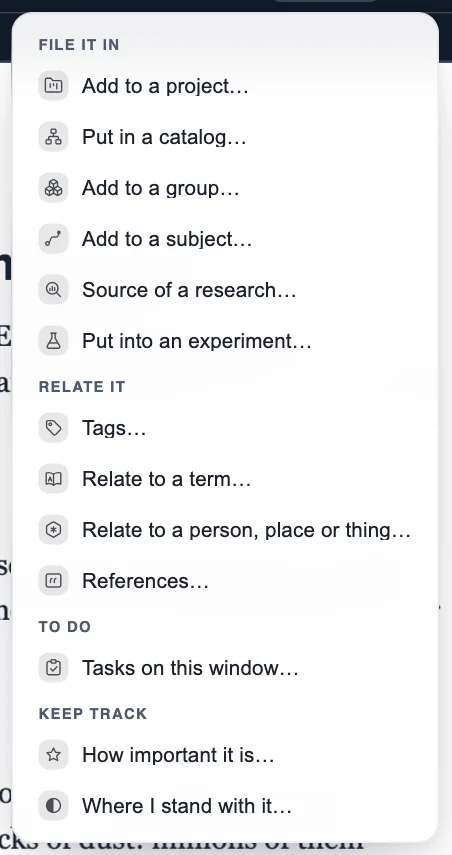
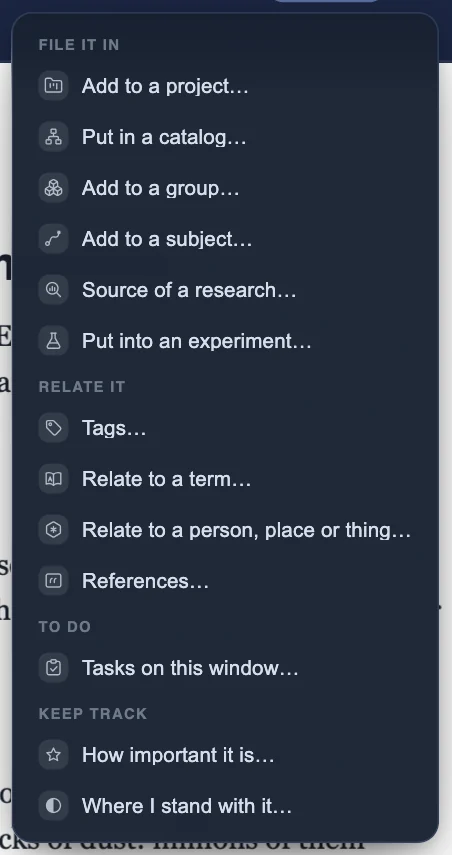
- File it in
- Add to a project…
- Put this window in one of your projects, or start a new one
- Put in a catalog…
- File it in catalogs of your own — a domain, a department, a client…
- Add to a group…
- Keep it with windows that belong together, to open them all at once
- Add to a subject…
- Follow one direction while you read: this window joins it
- Source of a research…
- Use it as a source of a research question
- Put into an experiment…
- Make it part of something you are trying out
- Relate it
- Tags…
- Put keywords on it, to find it again with others
- Relate to a term…
- Link it to a word of your vocabulary
- Relate to a person, place or thing…
- Link it to a person, a place or a thing it is about
- References…
- The sources it cites, or the source it is
- To do
- Tasks on this window…
- Make a task about it, or see the ones it has
- Keep track
- How important it is…
- Rate it from one to five stars
- Where I stand with it…
- Mark it as to read, being read, or read
⋯ More
What a window can also do.
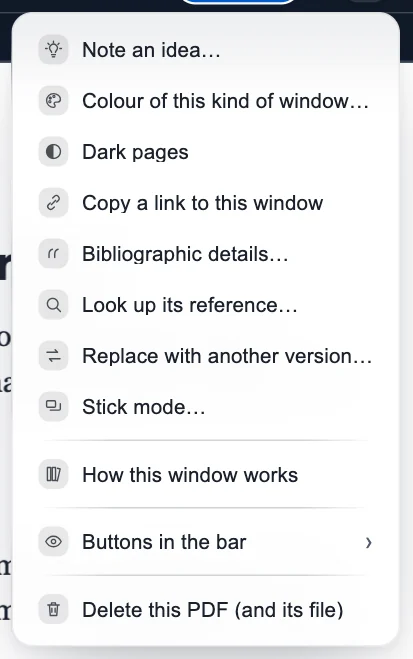
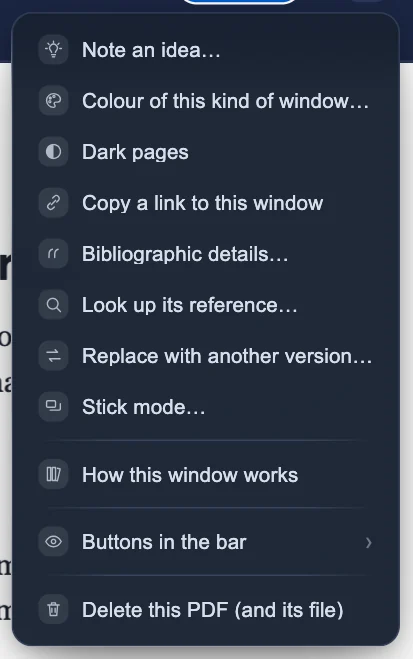
- Note an idea…
- Write down an idea about this window, filed with your ideas
- Colour of this kind of window…
- The colour every window of this kind wears
- Dark pages
- Read this PDF in dark mode — light words on a dark page; press again for white
- Copy a link to this window
- A link to this window, ready to paste in your notes
- Bibliographic details…
- Its title, authors, year and where it was published
- Look up its reference…
- Find its title, authors and year, and keep it in References
- Replace with another version…
- Put a newer or another version of this file in its place — its highlights, notes, tags and links stay
- Stick mode…
- Give windows fixed places: side by side, one above the other, in a grid
- How this window works
- Buttons in the bar
- Delete this PDF (and its file)
Asking the AI
Under every question: what the answer should be, who it is for, how long, in which language — and, on the line with Ask, the model that answers and what the answer should cost.
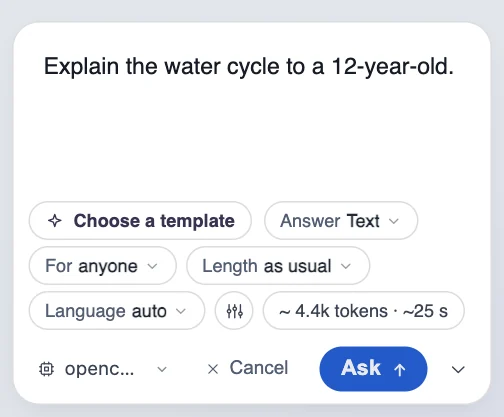
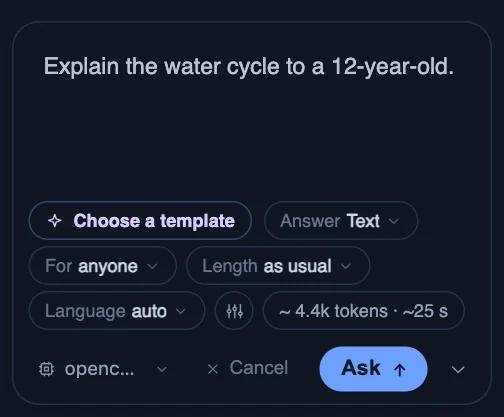
- Request templates: what the answer should be
- a summary, a quiz, a timeline, a page…
- What comes back: a text in this window, or a page beside it
- the cheapest answer
- For anyone
- Who the answer is for: their level, how it is worded
- How long the answer is
- a ceiling, not a target
- The language of the answer
- none chosen: it comes in the question's language
- Answer settings
- Every setting of the answer, in tabs: content, look, audience, model, advanced
- What this ask should cost, before it is sent
- a text answer · 3.5k in · 900 out · An estimate: fewer than three answers of this kind to measure yet · Press for the breakdown
- The model that answers
- press to change it
- Cancel
- Clear the comment and question
- Ask
- Hide the options
- keep only the box
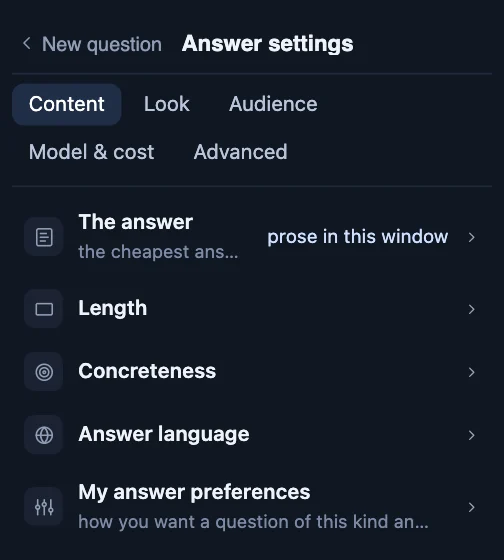
Answer settings
Everything about the answer, in tabs.
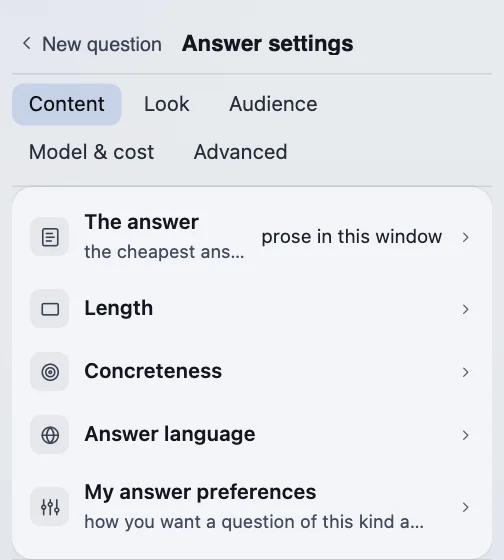
- Content
- The answer
- prose in this window
- Length
- Concreteness
- Answer language
- My answer preferences
- Look
- Design
- Style gallery — every style as a real page
- Customize the look
- Libraries
- Format
- Signature
- Audience
- Who is it for? Audience & formulation
- Who is answering? The speaker
- Model & cost
- The model that answers
- opencode (local)
- Service and context budget
- Advanced
- References
- marked
- Names
- marked
- Learned from my corrections
- Playground
Keyboard
The keys that work everywhere.
- Workspace
- ⌘K
- the command line: open a window, tag, filter, create, export — type and Enter
- drop a URL
- anywhere on the workspace or the activity: it becomes an import
- ⌥ + Tab
- cycle the recent windows (thumbnail strip) — ⇧ walks back
- Esc
- leave the window switcher without switching
- ⌥ + Q (hold)
- radial window picker around the mouse — release over one
- ⌥ (hold)
- radial picker of recent windows around the mouse
- ⌥ + Space
- zoom out to the general view (⌥⇧Space zooms back in)
- ⌥ + arrows
- pan the workspace, fluidly, for as long as they are held
- ⌥ + drag
- marquee-select windows on empty workspace
- ⌥ + B
- open / close the writing box — write the next block of a Write window from the workspace
- Ctrl + Space
- search the windows by name (blur + preview cards)
- ⌘Z / ⇧⌘Z
- back / forward in the window history (pointer over the graph)
- Right-click
- on empty workspace: create windows, import a PDF or an EPUB…
- ?
- this cheat sheet — it also lives in Settings ▸ Keyboard & gestures
- Esc
- close the search, a context menu or a picker (windows stay open)
- Windows & selection
- T
- tag the selected text (the picker stays open for the next tag)
- Right-click
- on a selection: tag · comment · Ask the AI · dictionary
- selection → Tag
- link every selected window to a tag (Parent / Child descends the tree)
- ⌘/Ctrl + Enter
- ask the question in the focused window
- ⇧⌥ + ↑/↓
- bring the next/previous stuck window to the top level
- ← / →
- in the picture viewer: the previous / next picture (Esc closes it)
- Activity
- Right-click
- on a bubble: delete or detach the activity entry
- ↑ ↓
- walk the entries in the activity filter — Enter focuses one
- ⌘B ⌘I ⌘K ⌘E
- bold · italic · link · code, in the composer’s Aa mode
- Tab / ⇧Tab
- nest / un-nest a list item, in the composer’s Aa mode
- Enter
- jump to that page (the PDF page box)
- Ctrl + wheel
- the page scale inside the window — a pinch or ⌥ zooms the workspace instead
- ⌥ + drag
- capture an area of the page as a picture (⬚ does the same without the key)
- Writing
- ⌘B ⌘I ⌘U ⌘K ⌘E
- bold · italic · underline · link · code, in a Write block
- ⌘⇧T
- the type picker for the block the caret is in
- ⌘Z / ⇧⌘Z
- undo / redo — the window’s own history, so a step survives a re-render
- ⇧ + Enter
- end the line without leaving the block
- Enter
- on an empty list item: step out of the list
- ↑ ↓
- in the writing box: from a row’s edge, walk the rows
- Diagrams
- ⌘Z / ⇧⌘Z
- undo / redo the text edit while typing in a block
- Ctrl + B / Ctrl + N
- undo / redo the diagram changes
- Delete
- remove the selected block(s)
- Enter / Esc
- new line in the block / leave the block
- any letter
- typed over the view: a text block is made where the mouse is
- Gestures
- right-click
- the same first items everywhere: Tag · Open · Pin
- drag a tag's port
- onto another tag: puts that tag in this group (⌥ or ⇧: a relation)
- ⇧-click
- in the activity with multi-select on: picks a range of bubbles
- click outside
- closes the tag picker, the palette, every popover
- Undo (toast)
- a deleted window, note or tag comes back — eight seconds
- ⌥ + drag a tag node
- moves that node alone — its members stay where they are
These pictures were taken from the app itself on 19 October 2026.