Step by step
Illustrated guides
Each guide walks through one thing you will do, one step at a time, with a picture of the screen at each step.
Your first ten minutes
The screen in three parts, and the four things you will do most: bring something in, read it, ask the AI about it, and get help.
Essential levelKeep your work in order
Every window can be put in a project, tagged, and made into a task — from one button, Add to.
Essential levelFind anything
One search for everything, filters for the list, and the windows you used last.
Essential levelArrange your windows
Side by side, one above the other, four in a grid, or one in focus — and back to where they were.
Standard levelGet the answer you need
Templates for what the answer should be, and the settings for who it is for and how long it is.
Standard levelShow more, or less
Three levels: Essential shows the few things you need to start, Complete shows everything. You can change at any moment.
Essential levelYour first ten minutes
The screen in three parts, and the four things you will do most: bring something in, read it, ask the AI about it, and get help.
Step 1
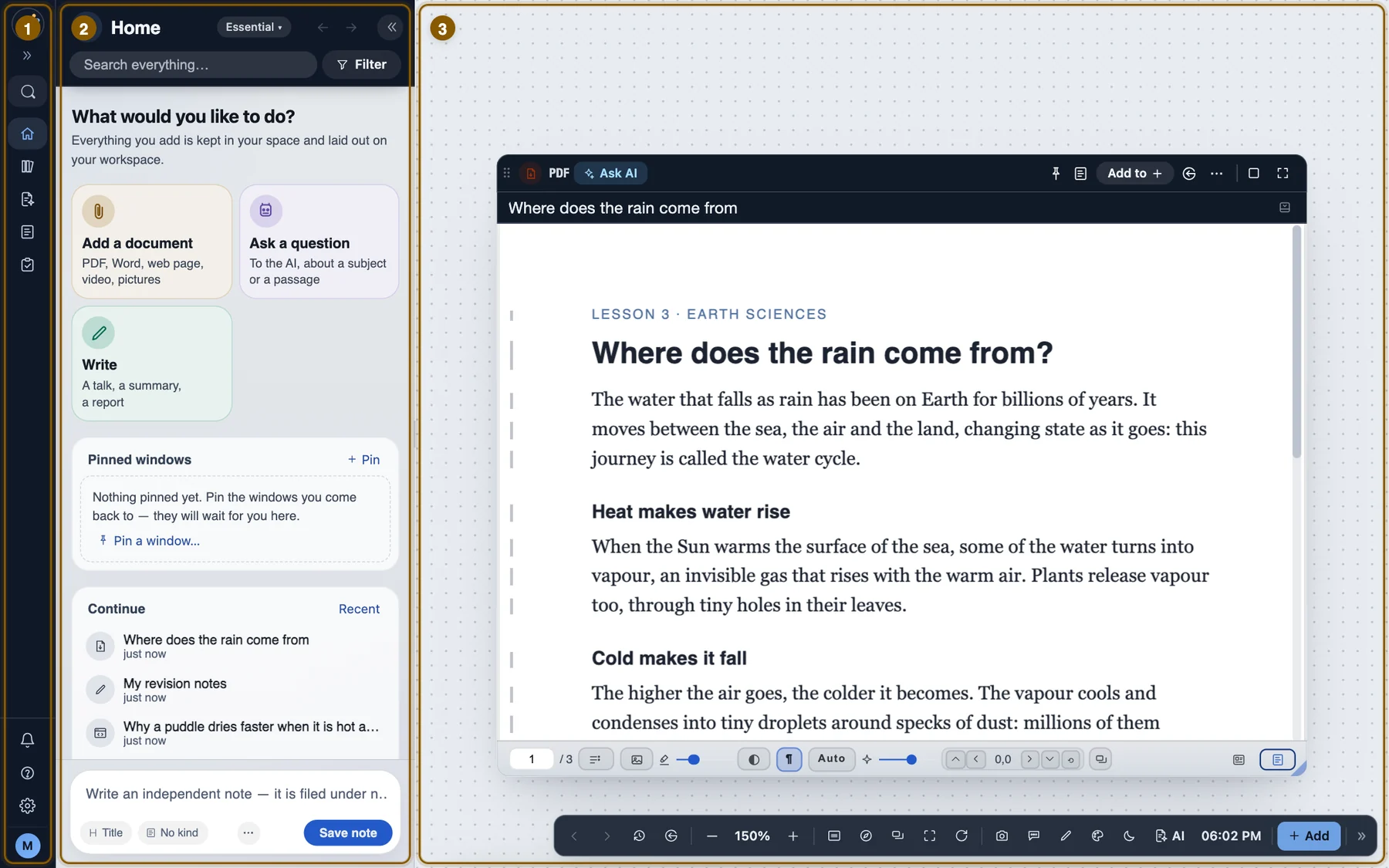
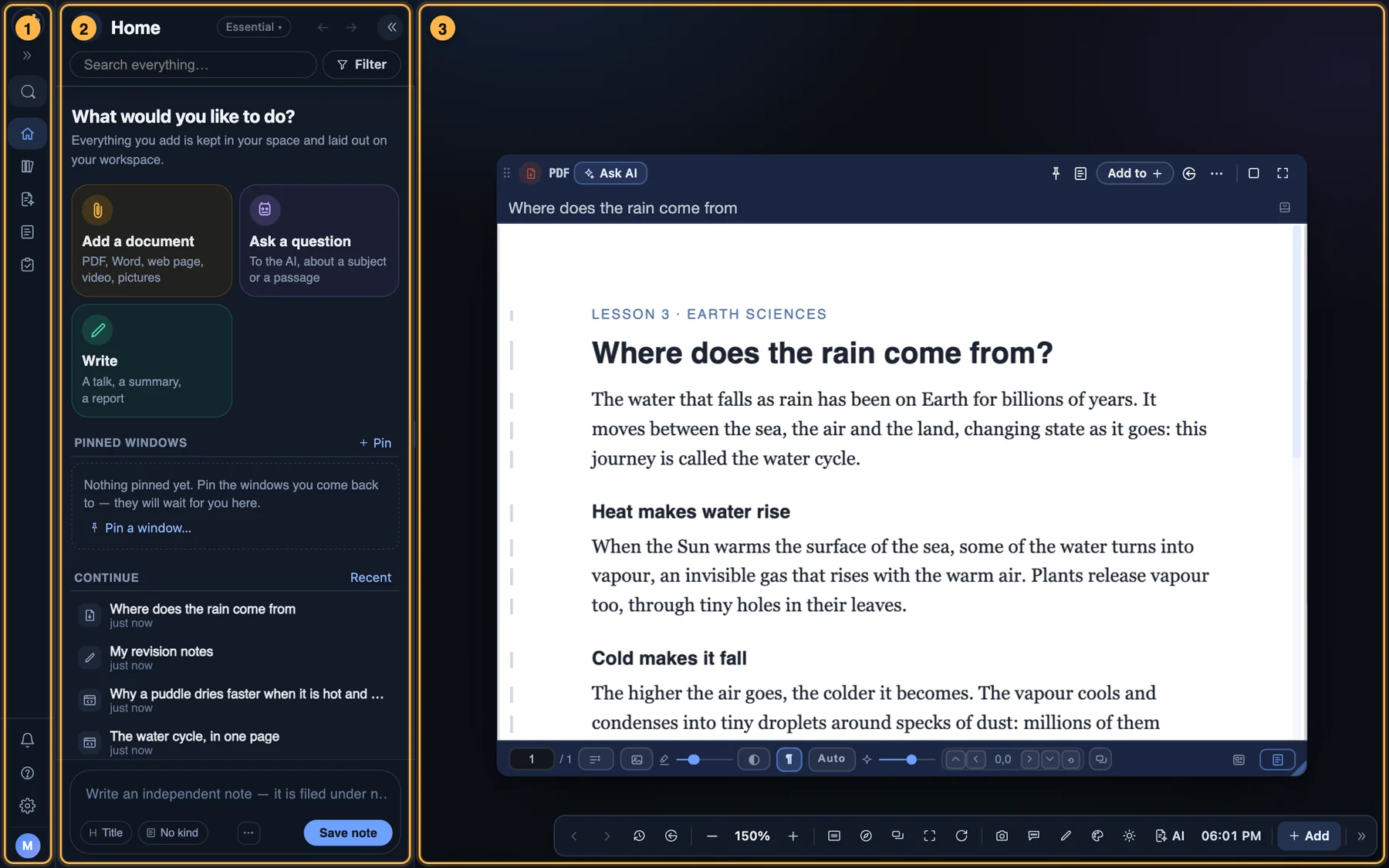
The three parts of the screen
1 · The sidebar, on the left, is where everything is sorted: Home, Documents, Notes, Tasks, Projects, Knowledge. 2 · The list beside it shows what you chose in the sidebar. 3 · The workspace is where your windows stand; you can move them, zoom in and out, and arrange them.
Step 2
Bring something in
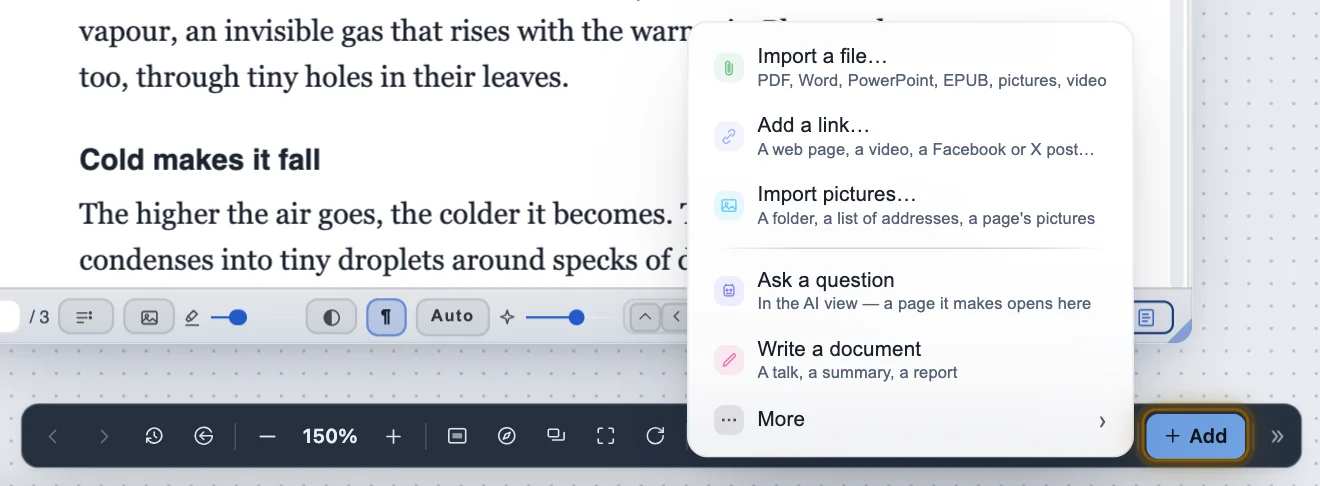
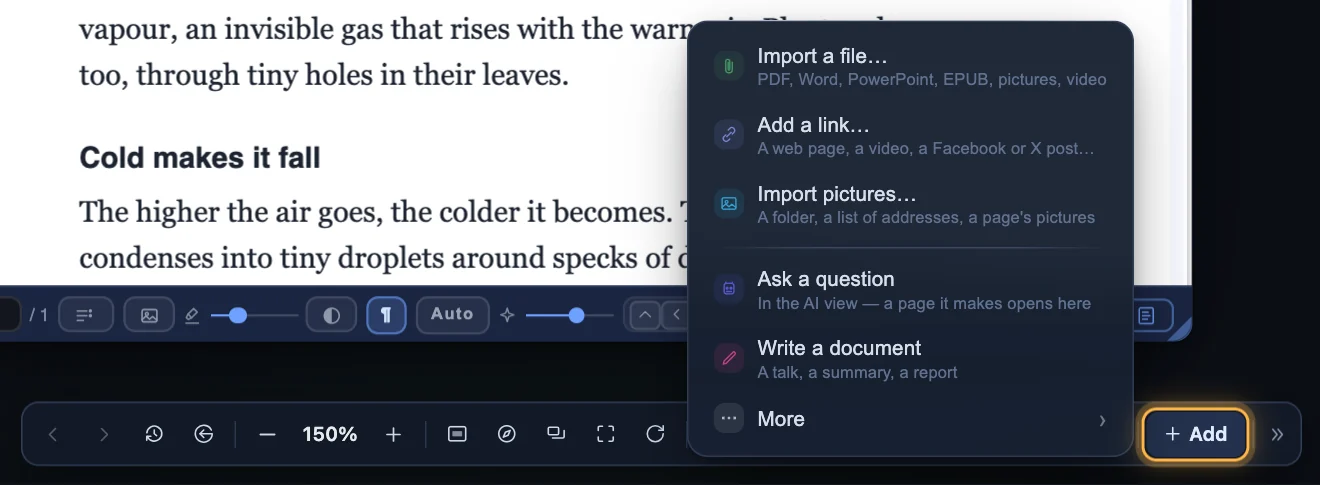
Press Add, in the bar at the bottom of the workspace. It opens everything your space can hold: a PDF, a document, a book, a video, a web page, pictures, music — or a blank page to write on. A right-click on the empty workspace opens the same list where you clicked.
Step 3
Read in a window
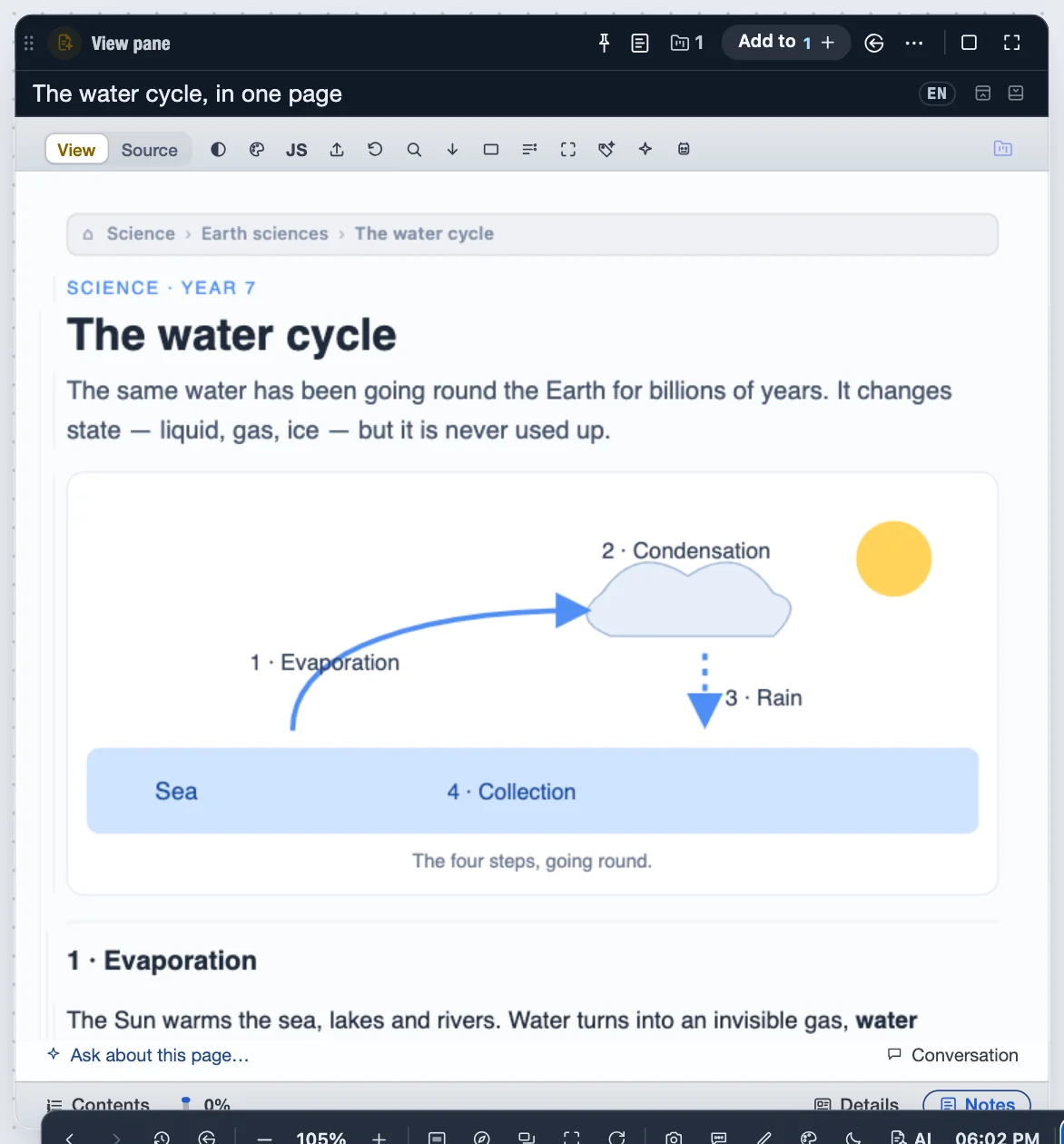
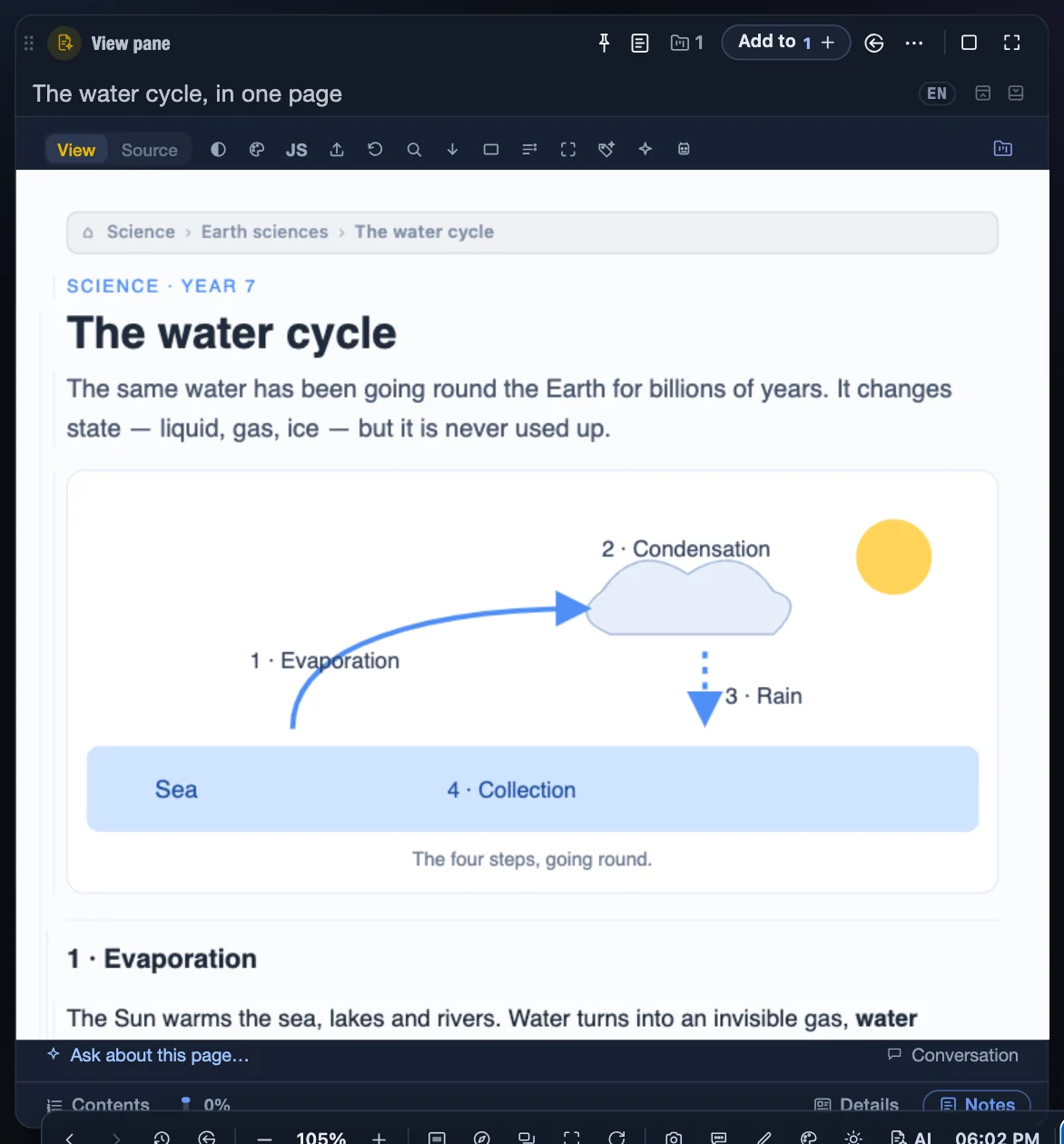
Everything opens in a window. Drag its title bar to move it and its corner to resize it. The words under the title say what it belongs to — here, the project it is filed in.
Step 4
Ask the AI about what you read
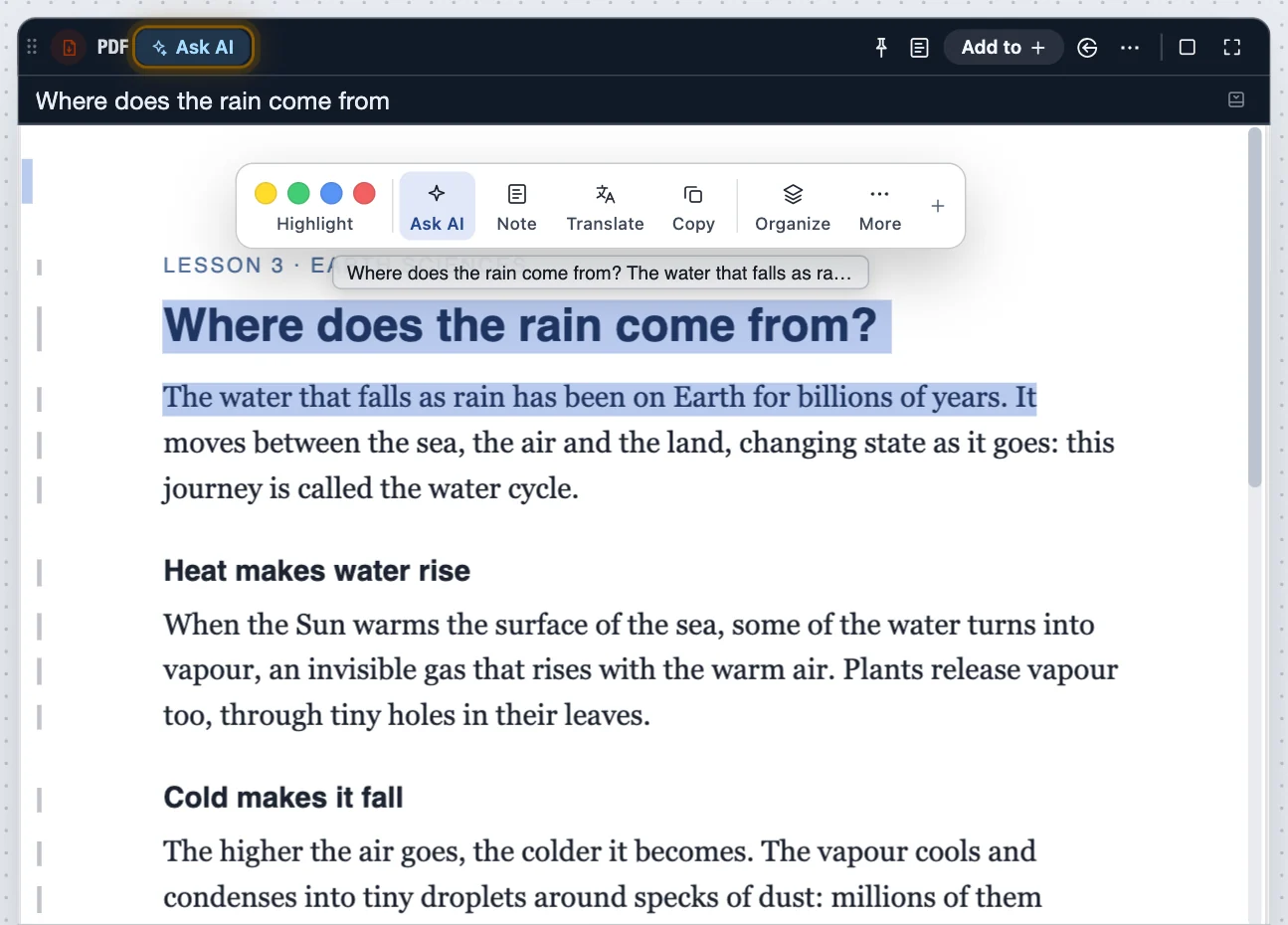
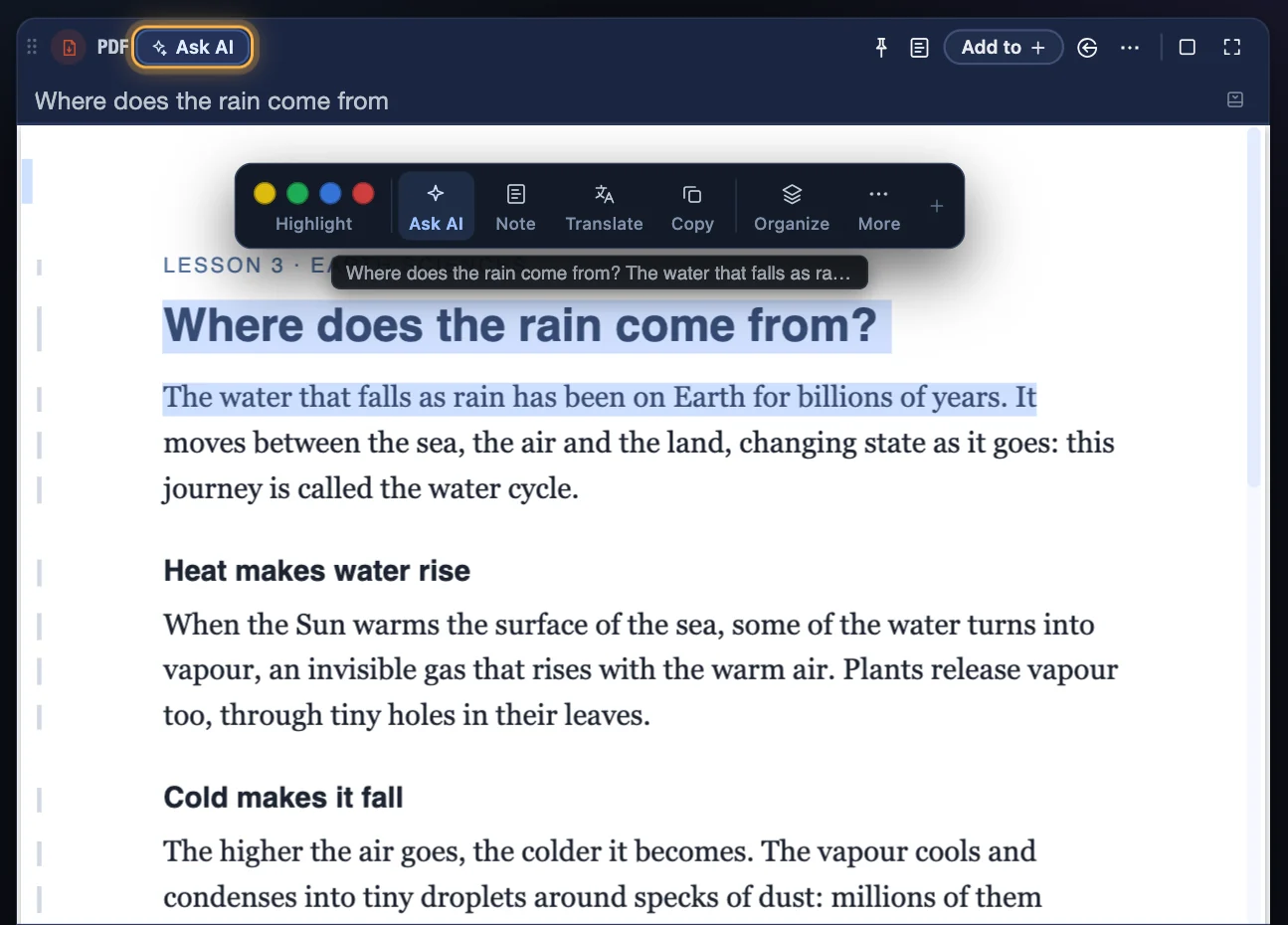
Select a few words in a document, then press Ask AI in its bar: the question opens in the list, under AI, with the words you chose. Write your question and press Ask. An answer in words comes there, in the conversation; a page opens in a View pane beside the document, with every version it makes. With nothing selected, the AI is asked about the whole document.
Step 5
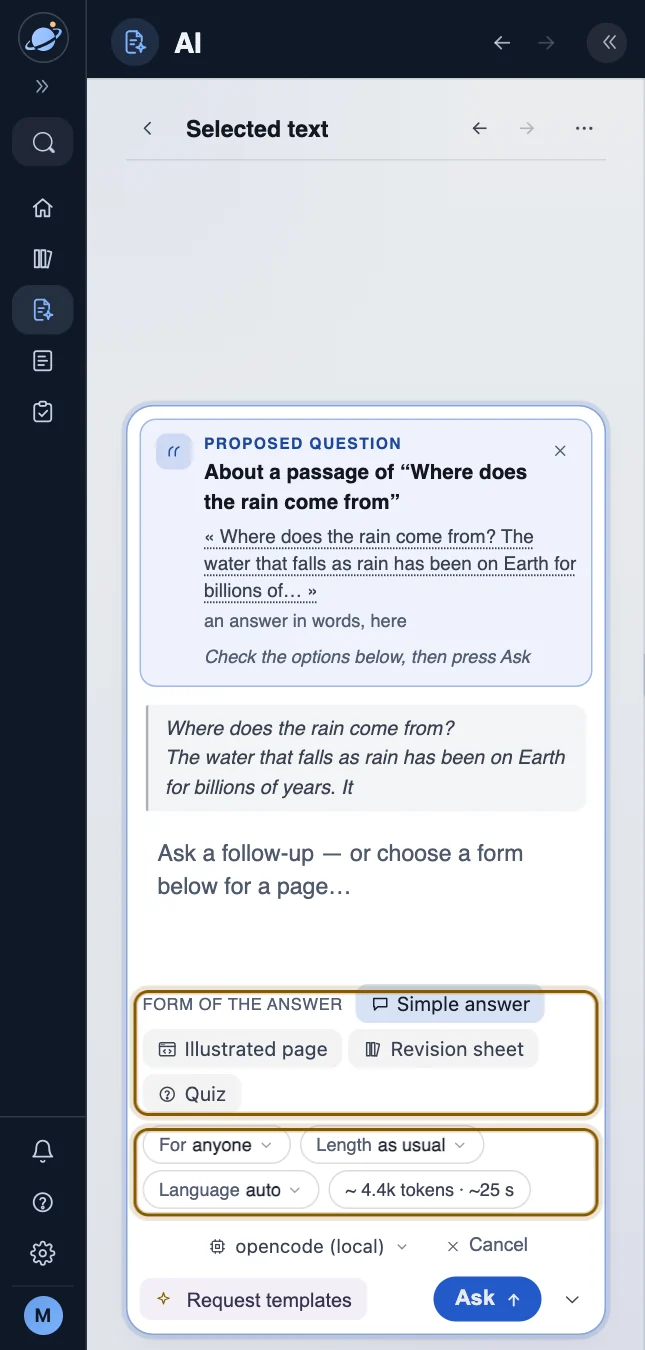
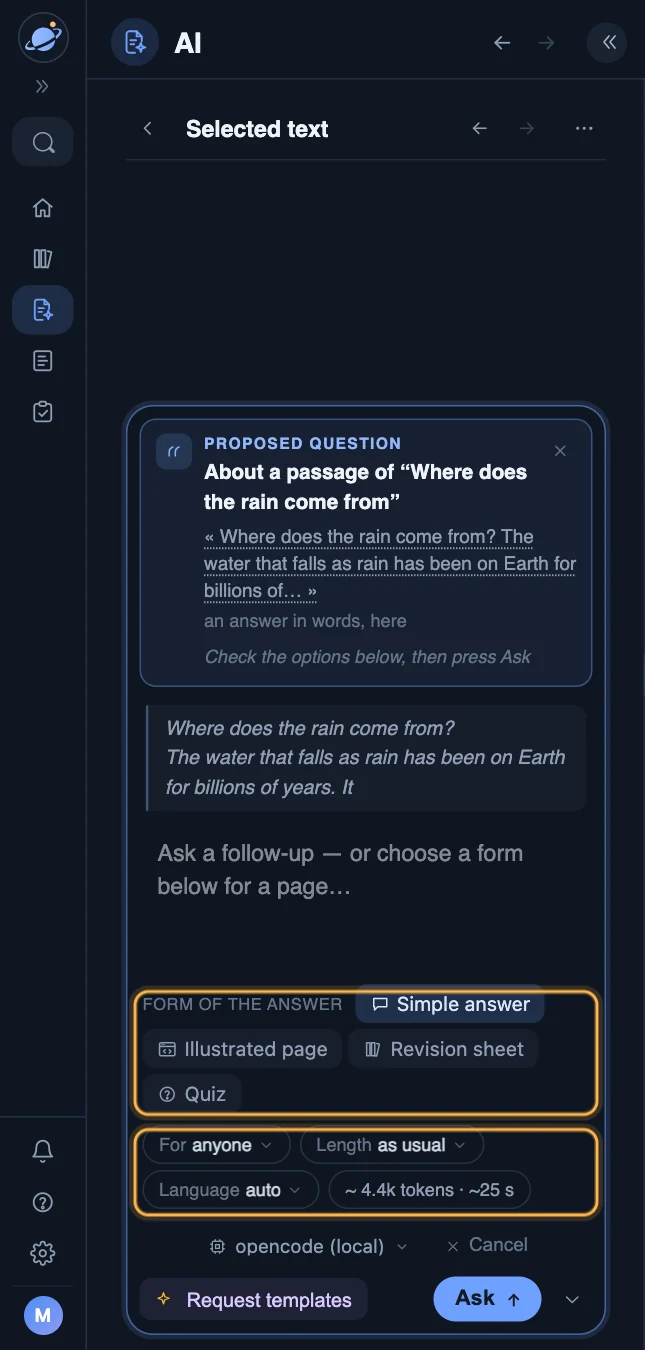
Choose how the AI answers
Your question stands in the list, under AI, with the words you chose. Under the box where you write it, you choose the form of the answer — a simple answer, an illustrated page, a revision sheet, a quiz — then who it is for, its length and its language. At the Standard level, Choose a template and Answer settings offer many more.
Step 6
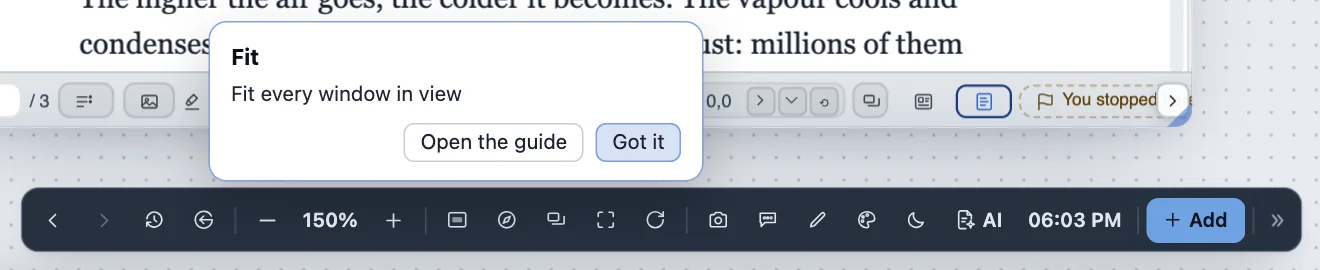
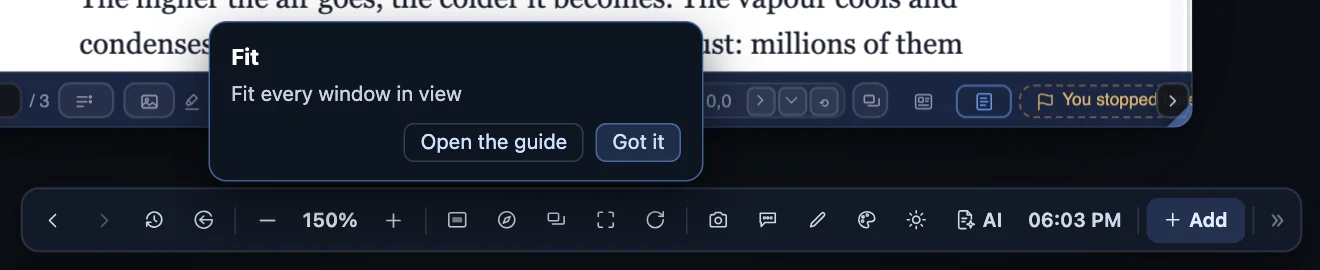
Help, wherever you are
Press ?, then any button: a card says what it does, and nothing is carried out. Hold the pointer over a button for its name. Help, at the bottom of the sidebar, opens these guides.
Keep your work in order
Every window can be put in a project, tagged, and made into a task — from one button, Add to.
Step 1
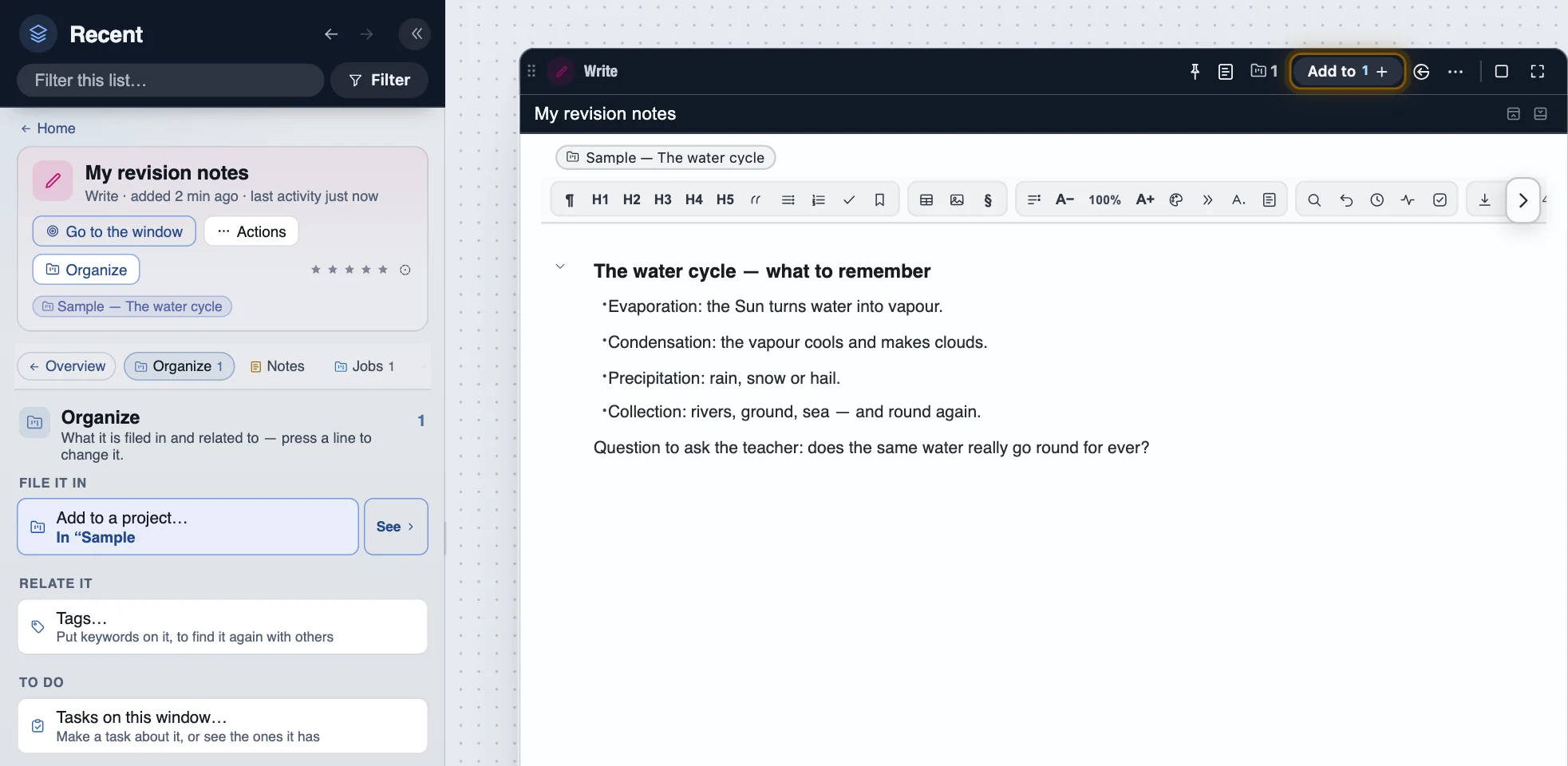
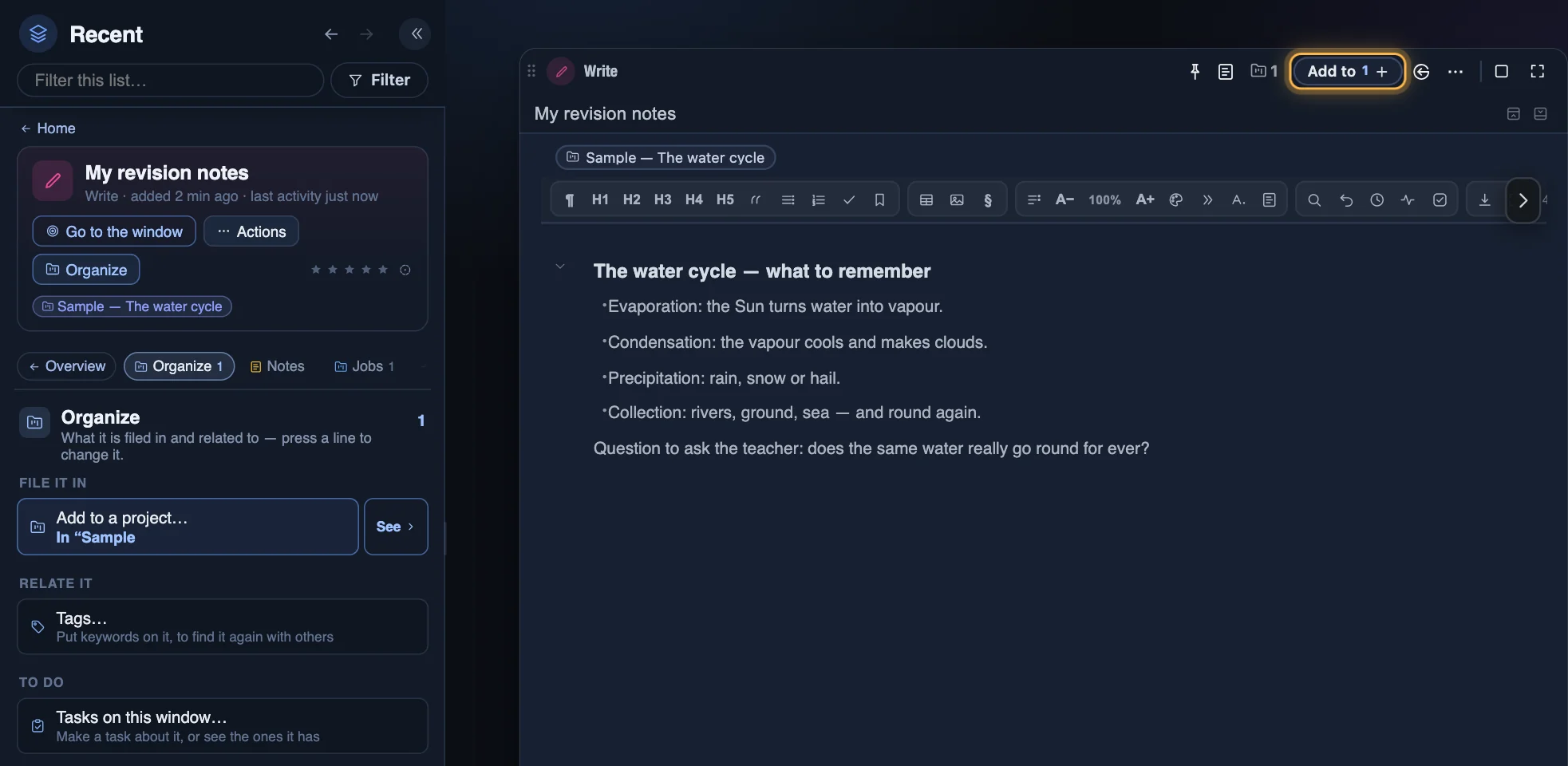
Add to, in every window
Add to, in a window's bar, opens the window's details at Organize: put it in a project, tag it, or make a task about it, each in one press. A right-click on Add to gives the same as a menu.
Step 2
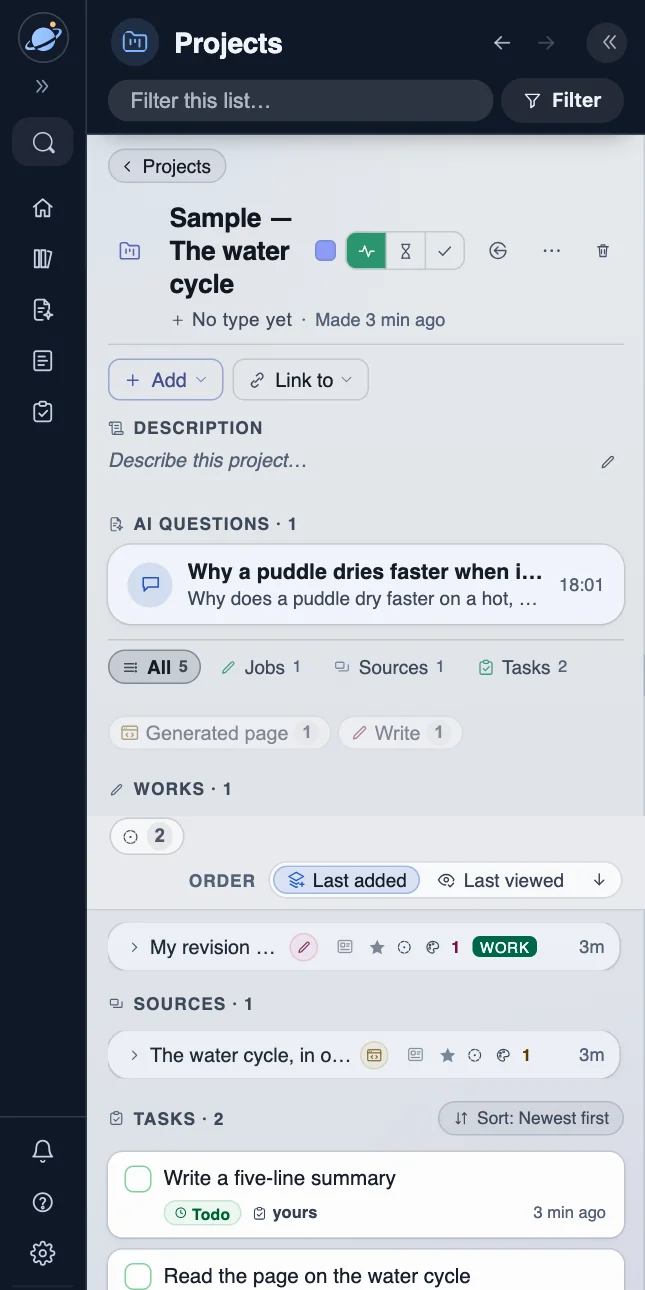
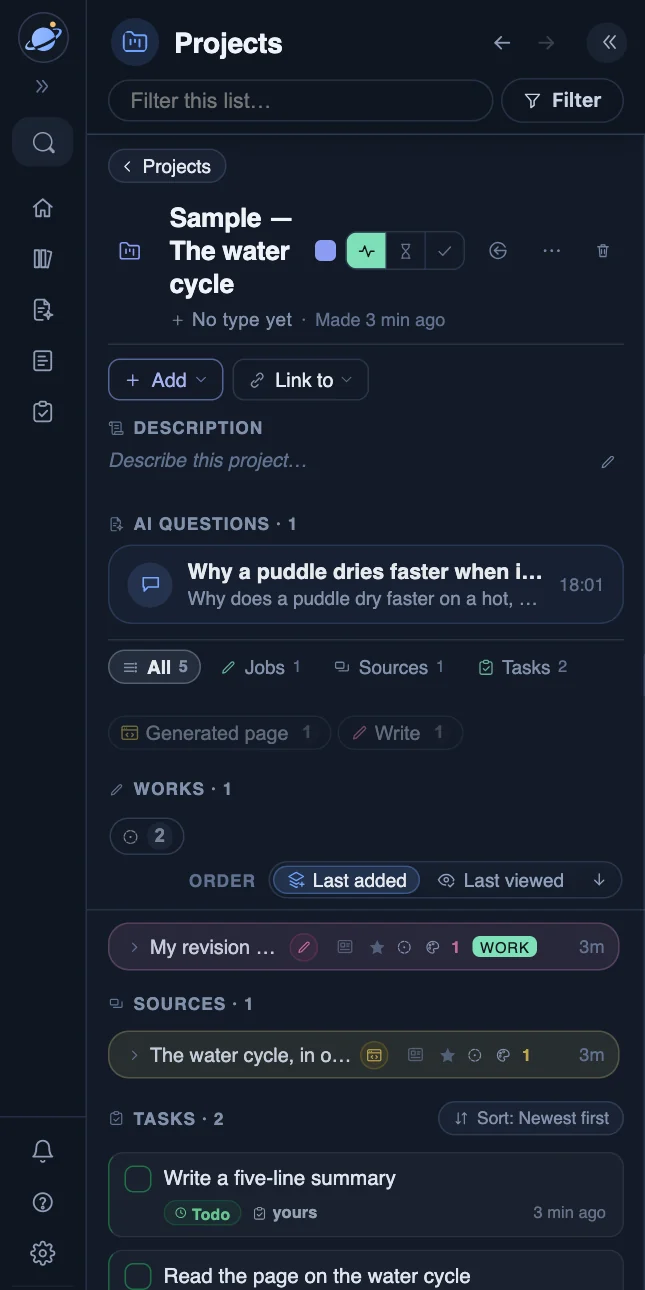
Your projects
In the sidebar, Projects lists them. Open one: its windows, its notes and its tasks are all there, and a press on a window takes you to it.
Step 3
What you have to do
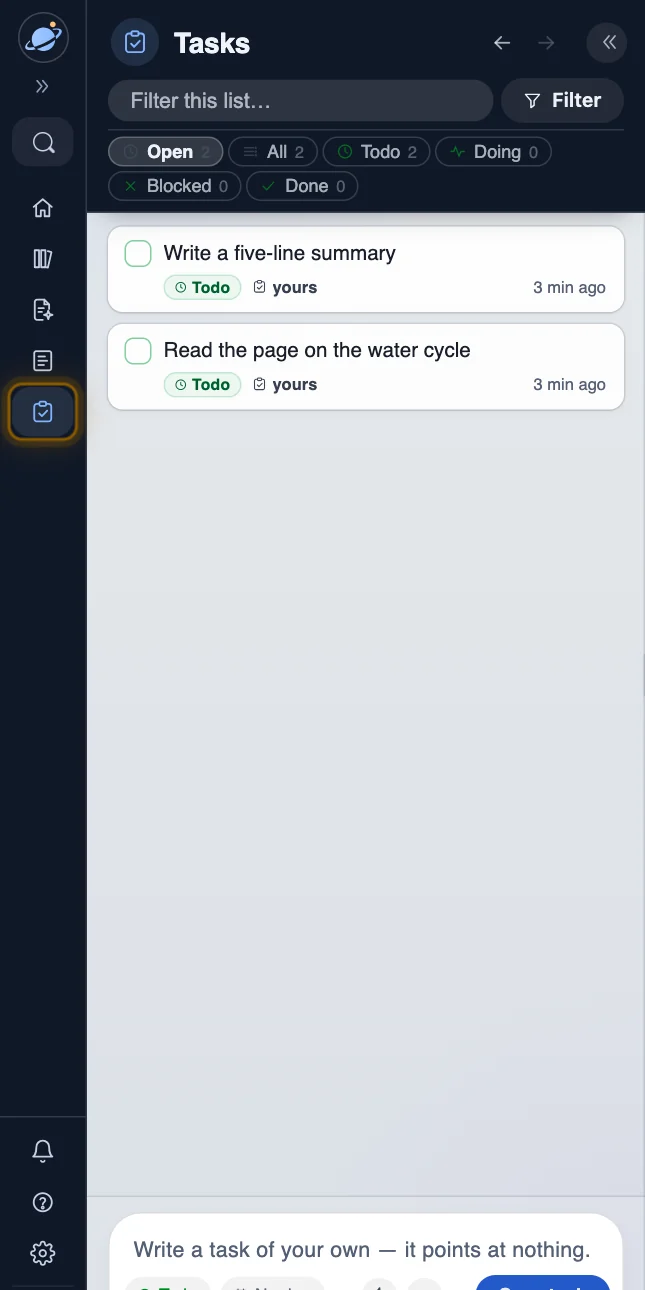
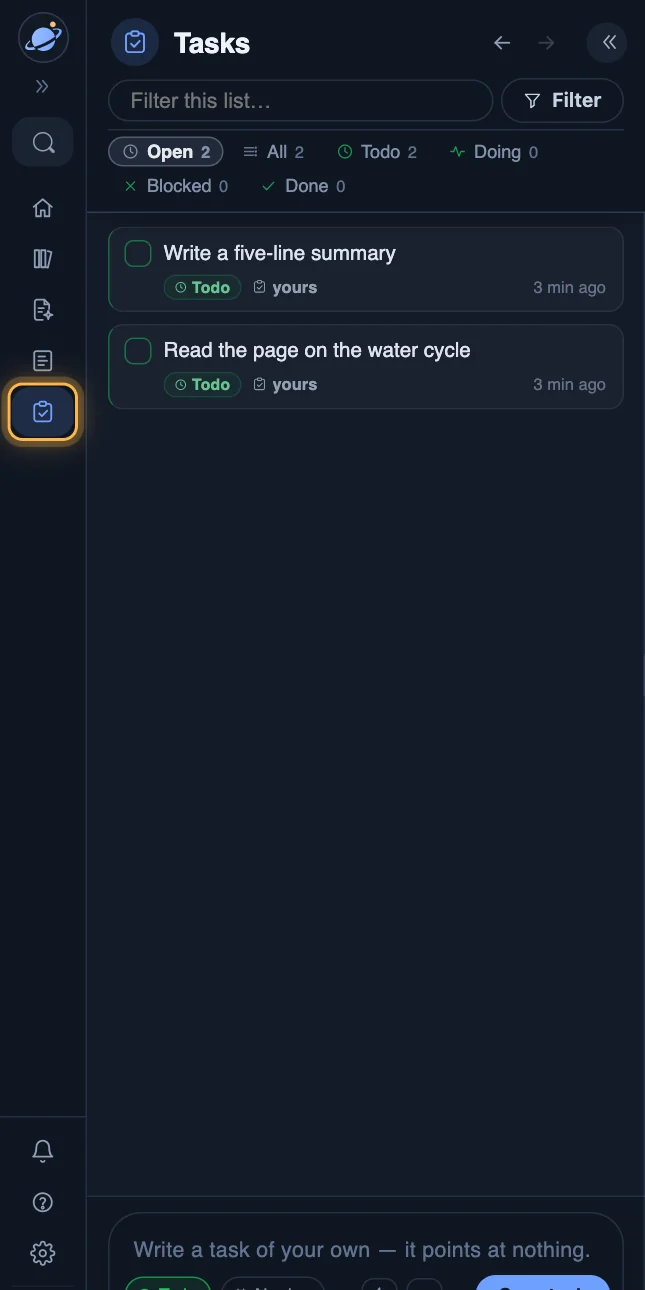
Tasks gathers every task, from every window and project. Tick one when it is done; the box at the bottom adds a new one.
Find anything
One search for everything, filters for the list, and the windows you used last.
Step 1
One search, for everything
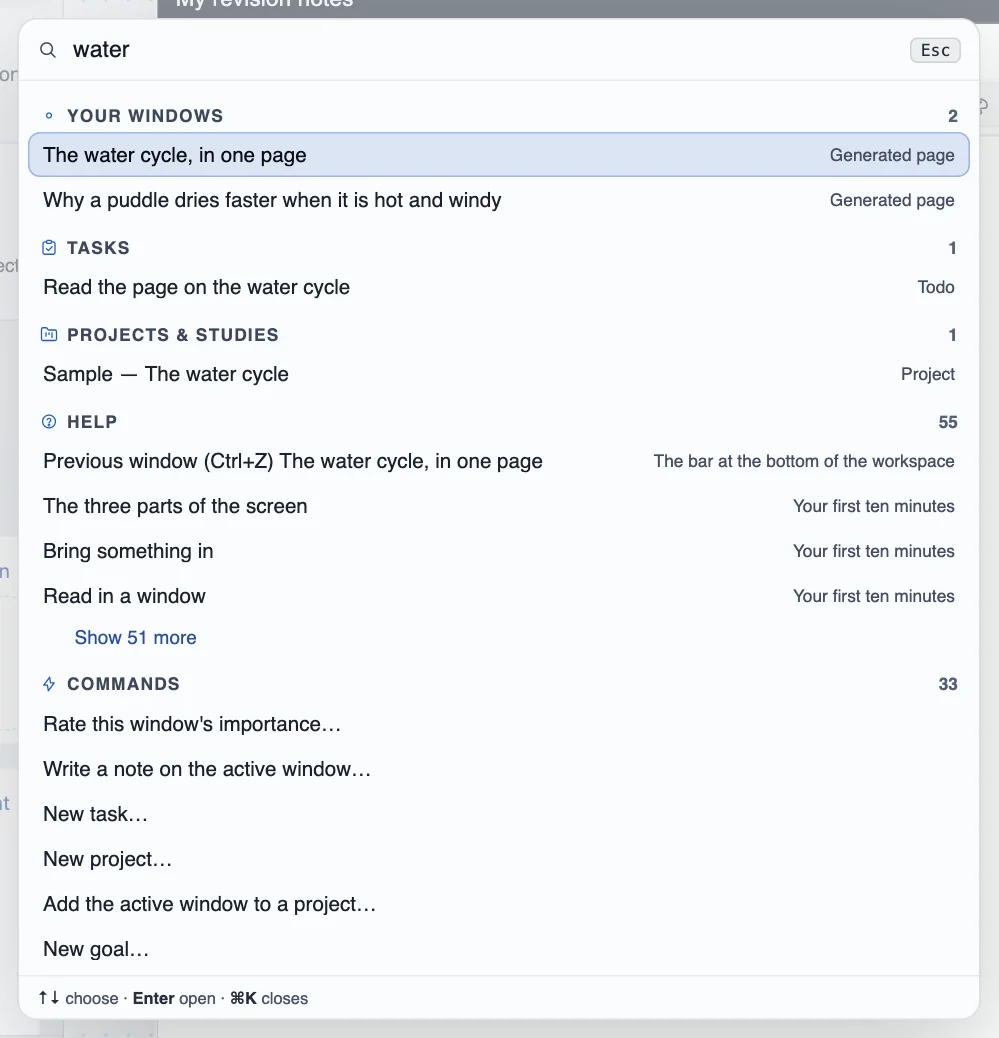
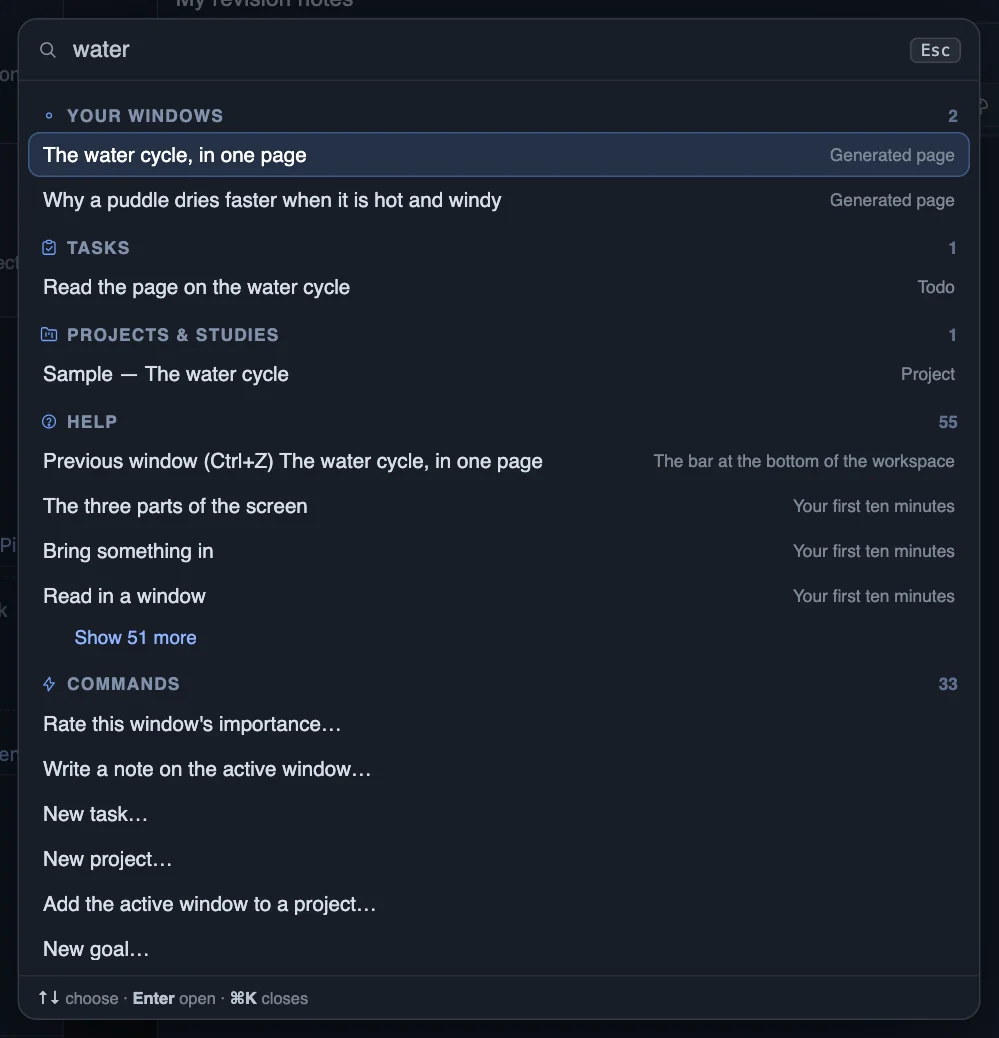
Search, at the top of the sidebar, or ⌘K: type a few letters and the answer comes by kind — windows, notes, tasks, projects, your vocabulary, the help, and the commands.
Step 2
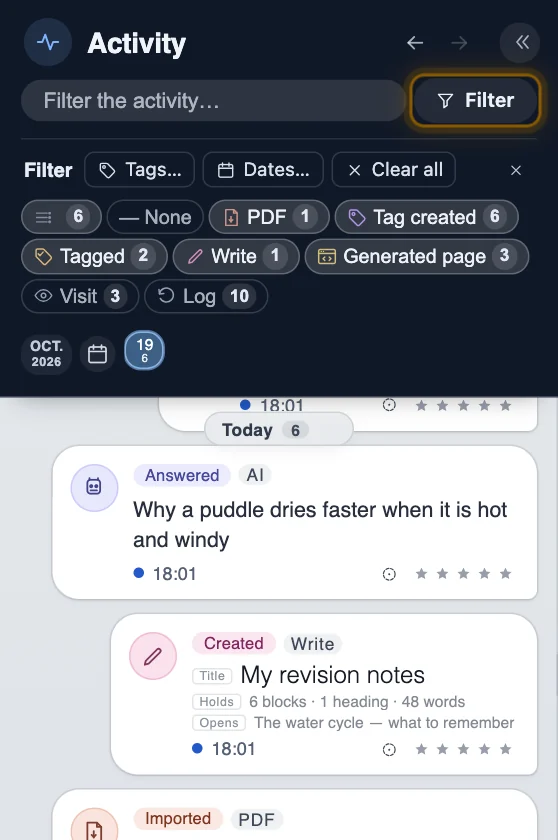
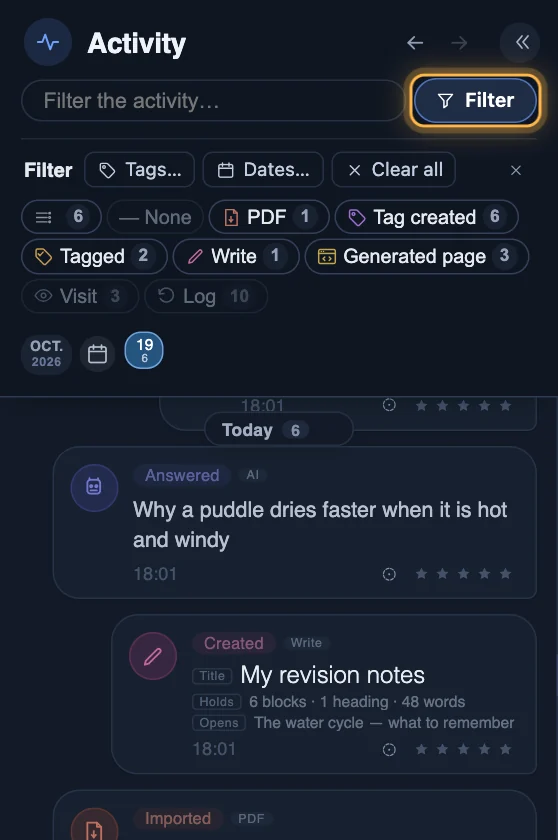
Narrow the list
Filter, above the list, narrows it by tag, by date, or to the lines you choose. The number on the button says how many filters are on; Clear all takes them off.
Step 3
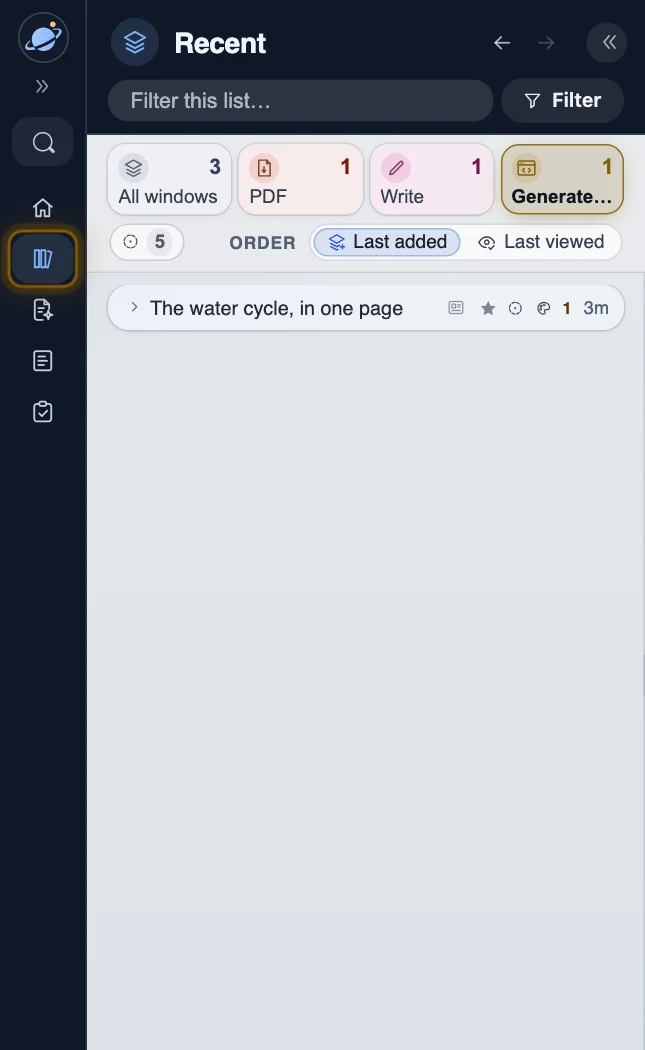
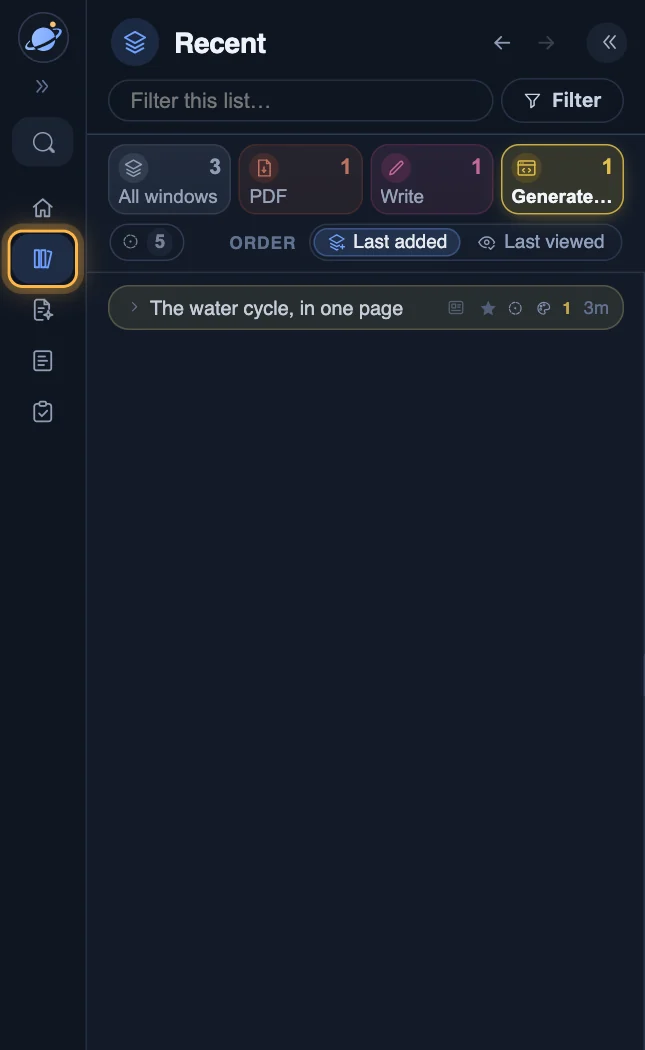
The windows you used last
Documents ▸ Recent lists your windows, the one in hand first. A press takes you to it.
Arrange your windows
Side by side, one above the other, four in a grid, or one in focus — and back to where they were.
Step 1
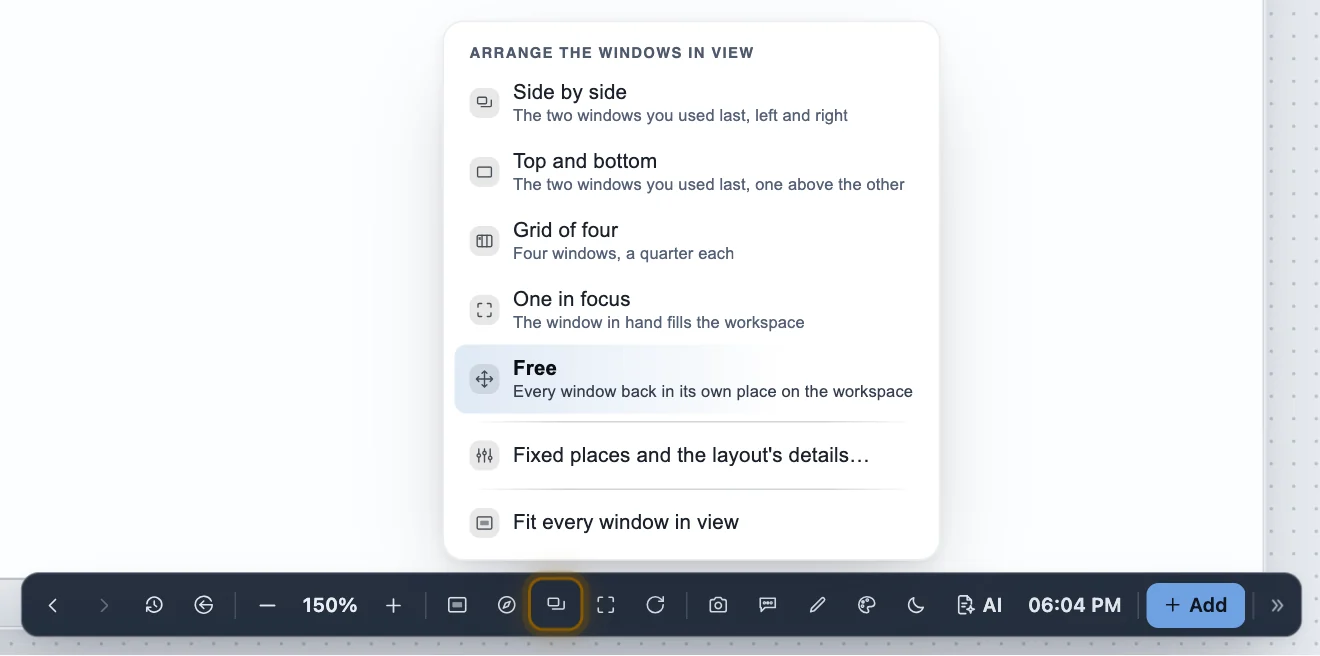
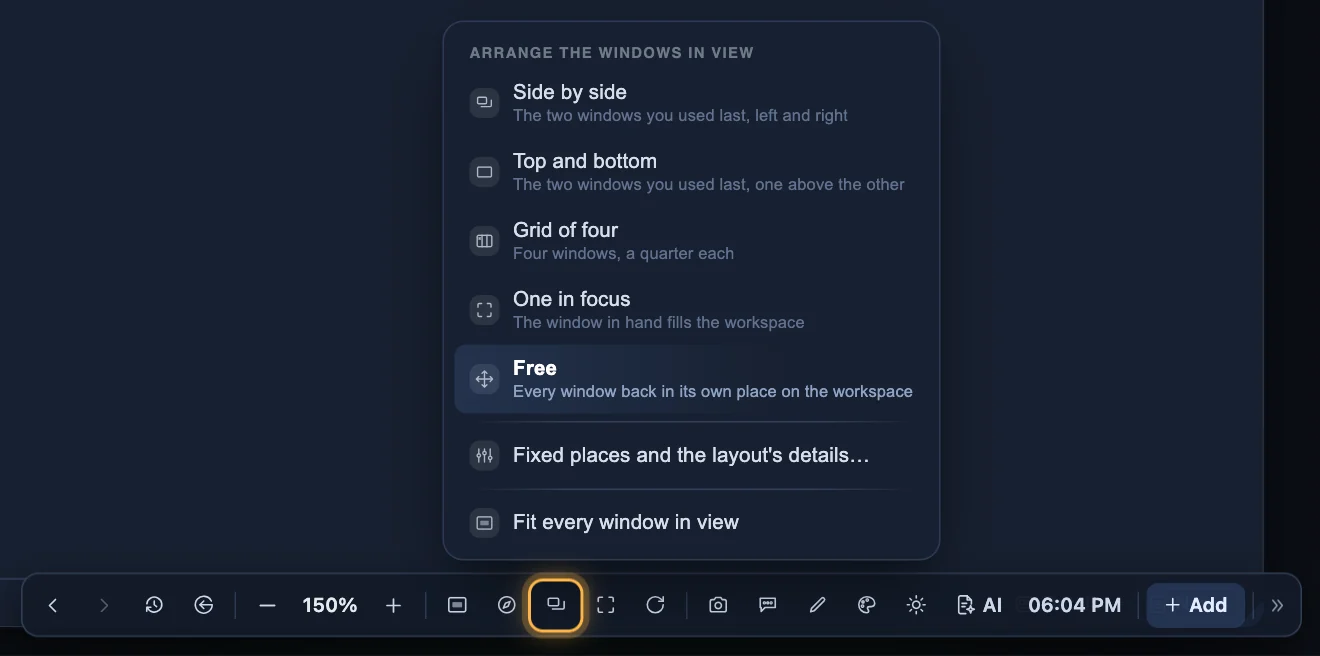
The layouts
Layout, in the bar at the bottom, arranges the windows in view. Free puts every window back in its own place.
Step 2
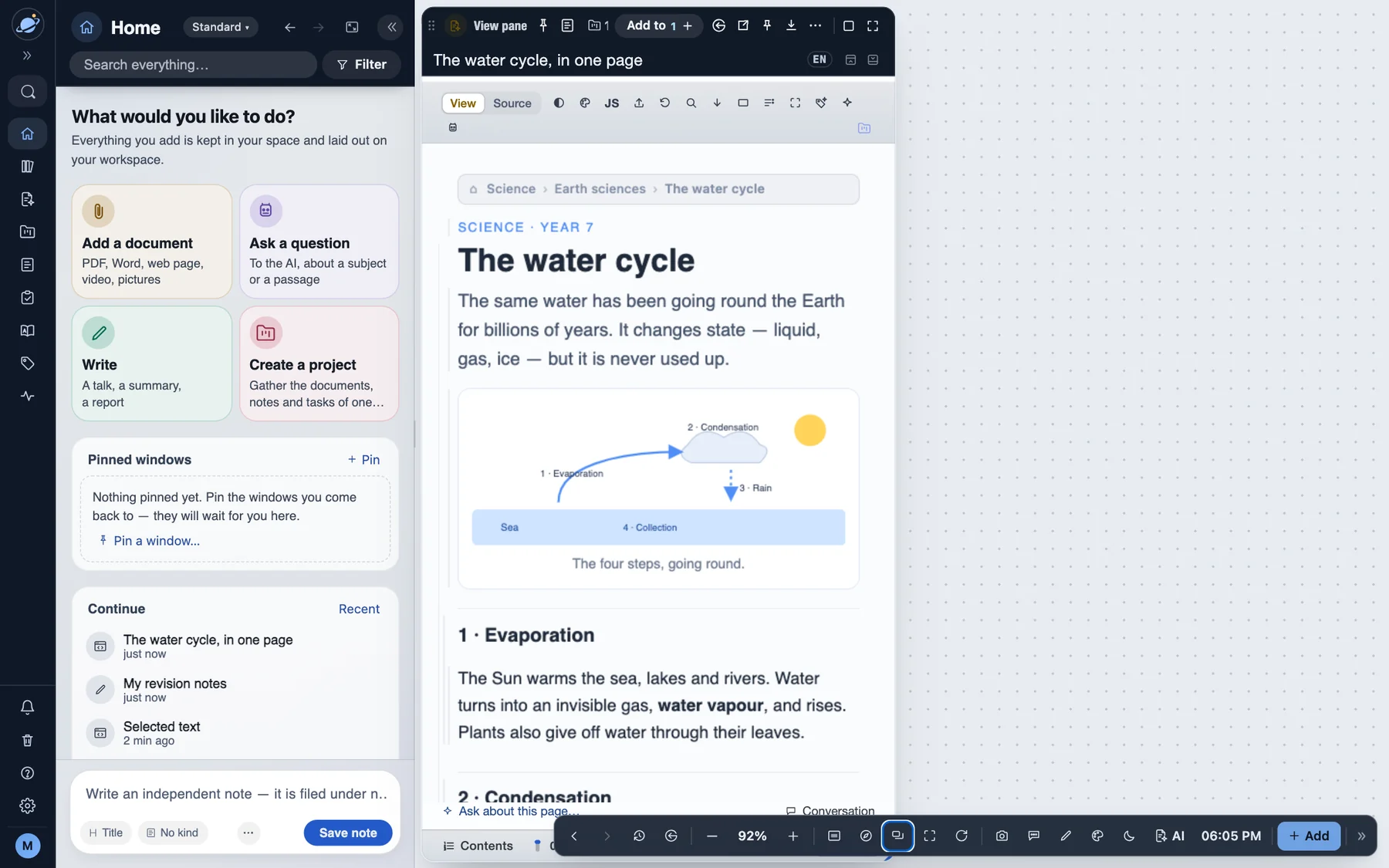
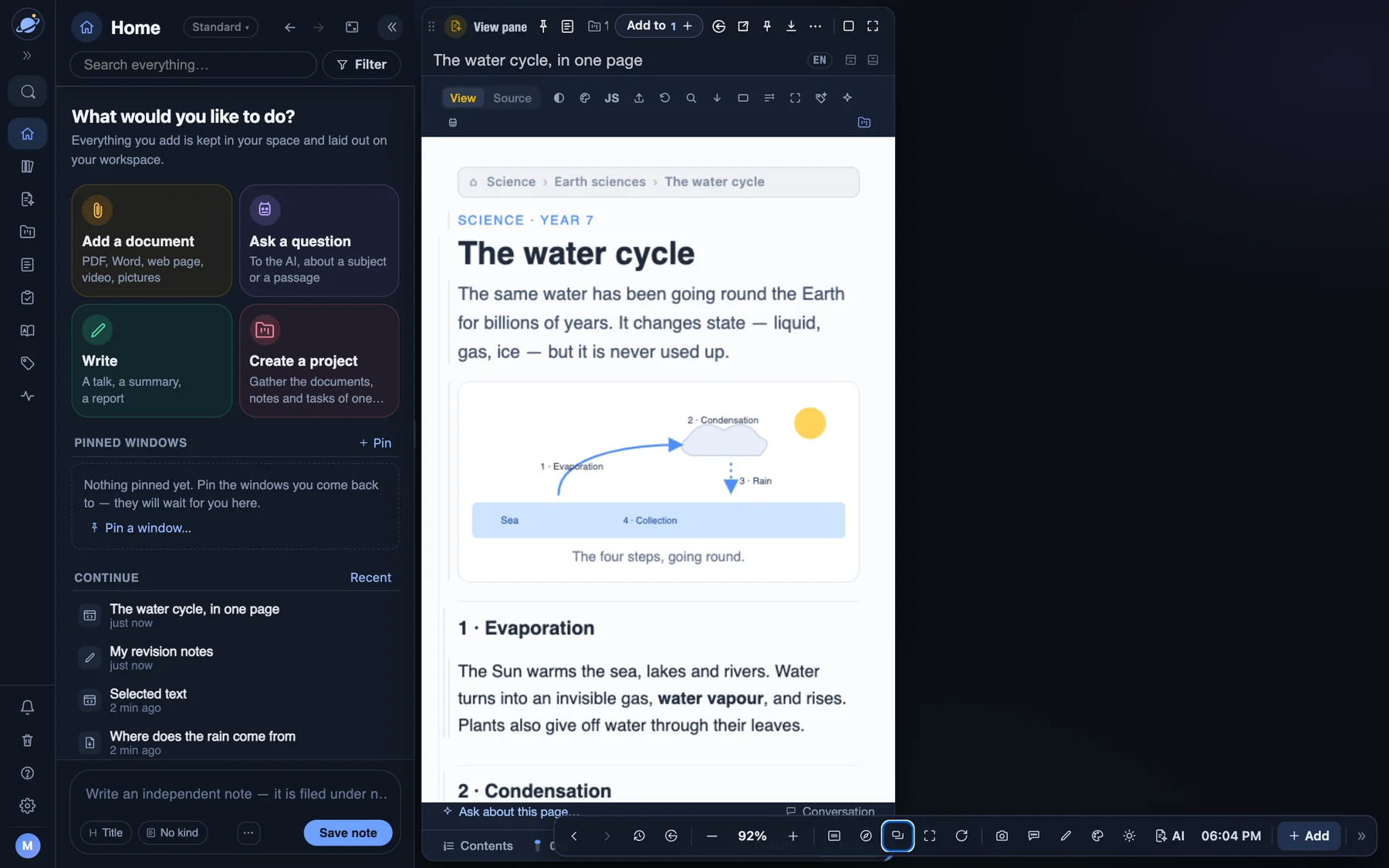
Side by side
The two windows you used last share the workspace, left and right — a document and your notes, a question and its answer.
Step 3
Fill, or full screen
At the end of a window's bar: fill gives it the whole workspace (press again to go back), full screen gives it the whole screen (Esc to leave).


Get the answer you need
Templates for what the answer should be, and the settings for who it is for and how long it is.
Step 1
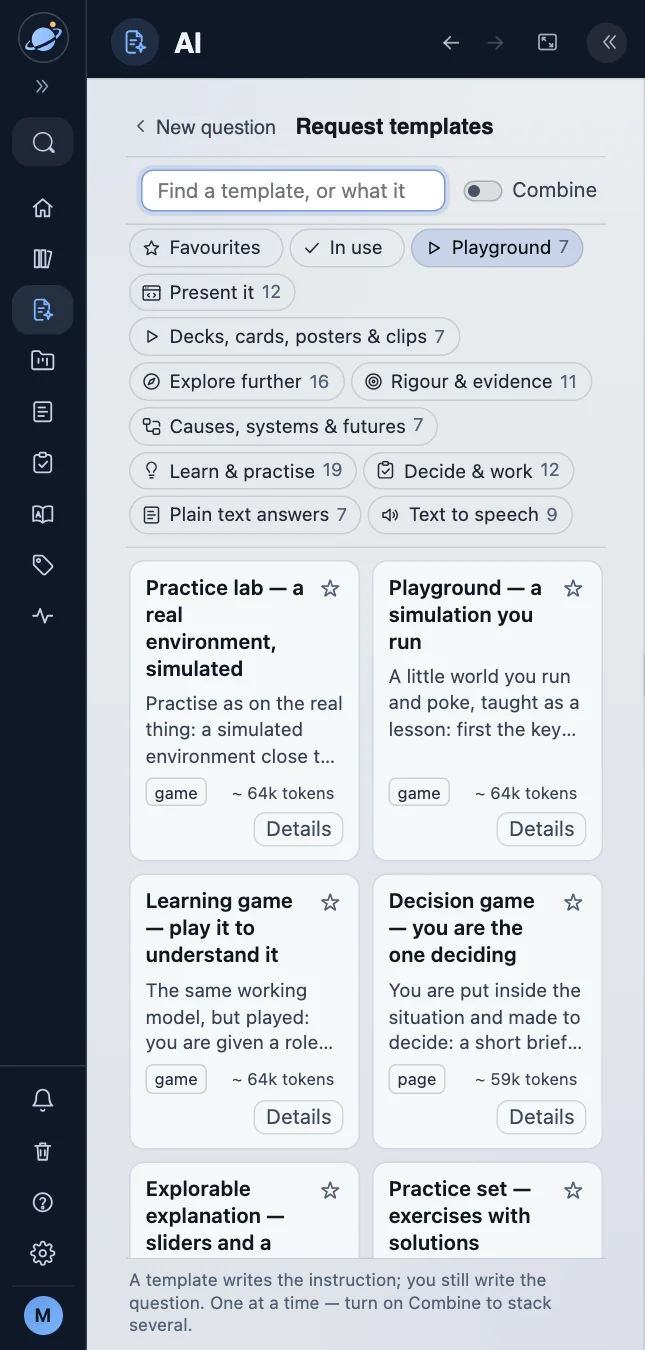
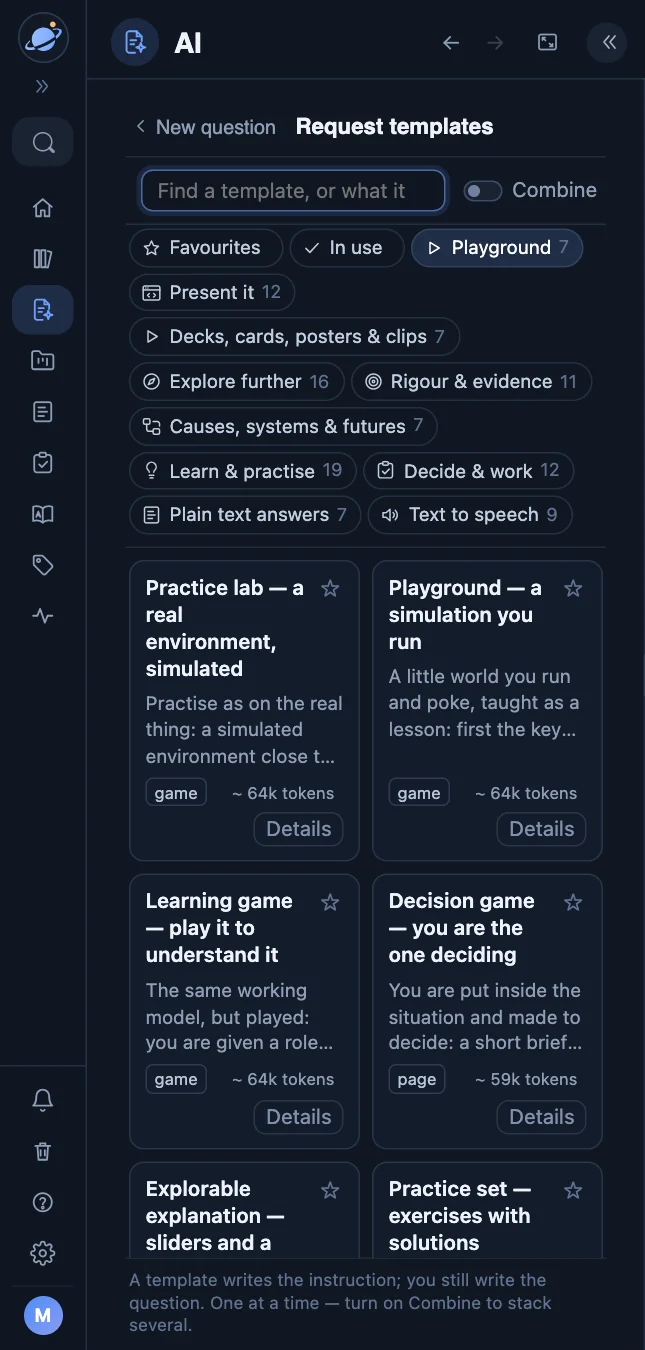
Request templates
Press AI in the sidebar, then Ask the AI… at the foot of the list: a new question opens there. Under its box, Choose a template opens the gallery in the list — a summary, a quiz, a timeline, a slideshow, a page… Each card says what it makes; ☆ keeps one in your favourites, and ‹ takes you back to your question.
Step 2
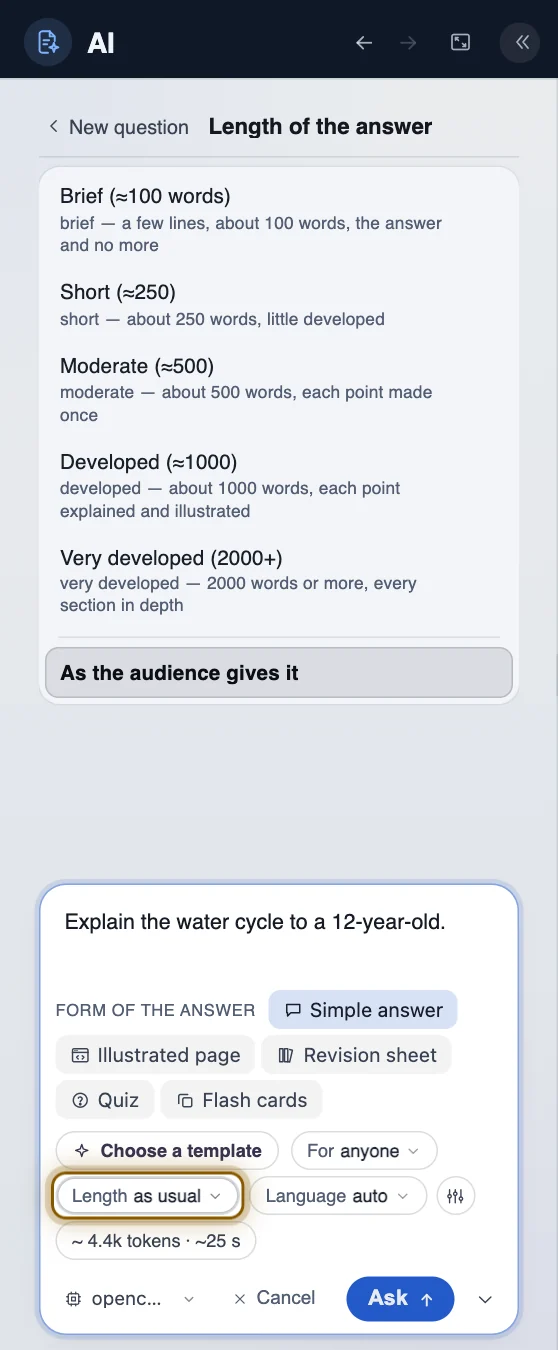
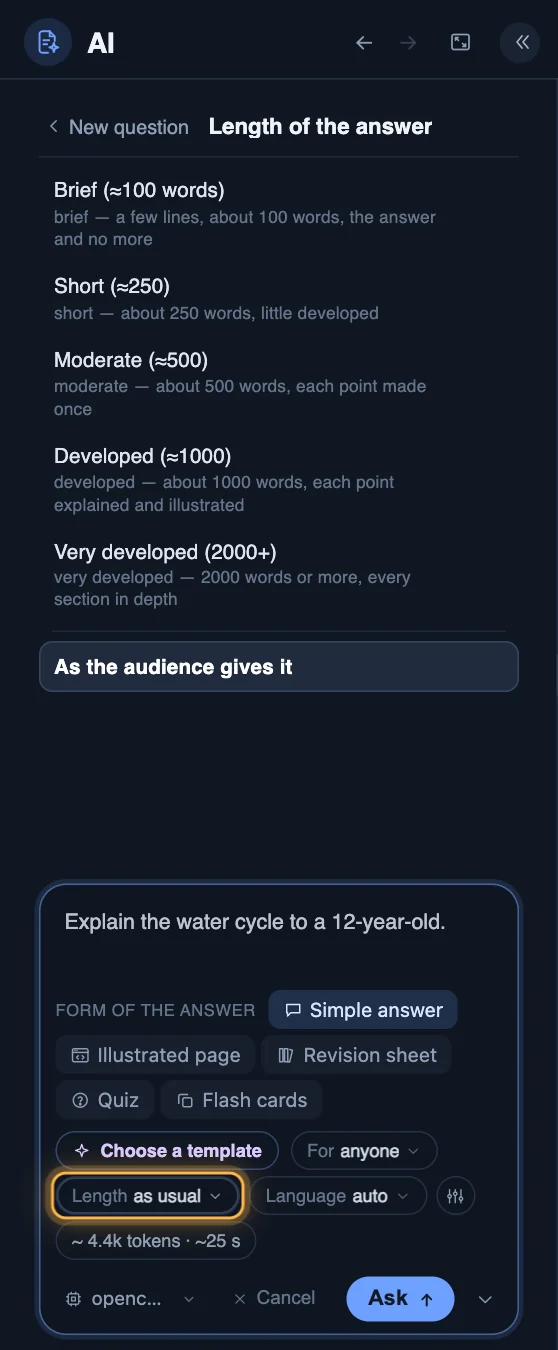
Who it is for, and how long
The chips under the question change one thing each: For says who will read the answer, Length how long it may be, Language which language it is written in. A chip opens its choices in the list, over your question, which stays in sight; the chip is lit while they are open.
Step 3
Every setting of the answer
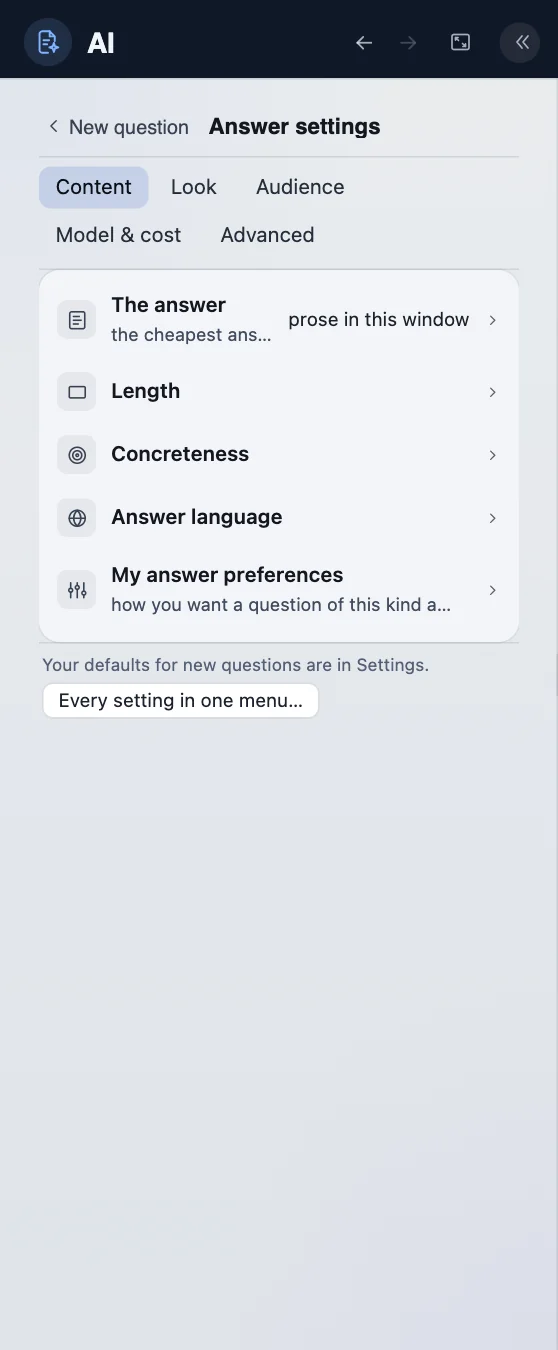
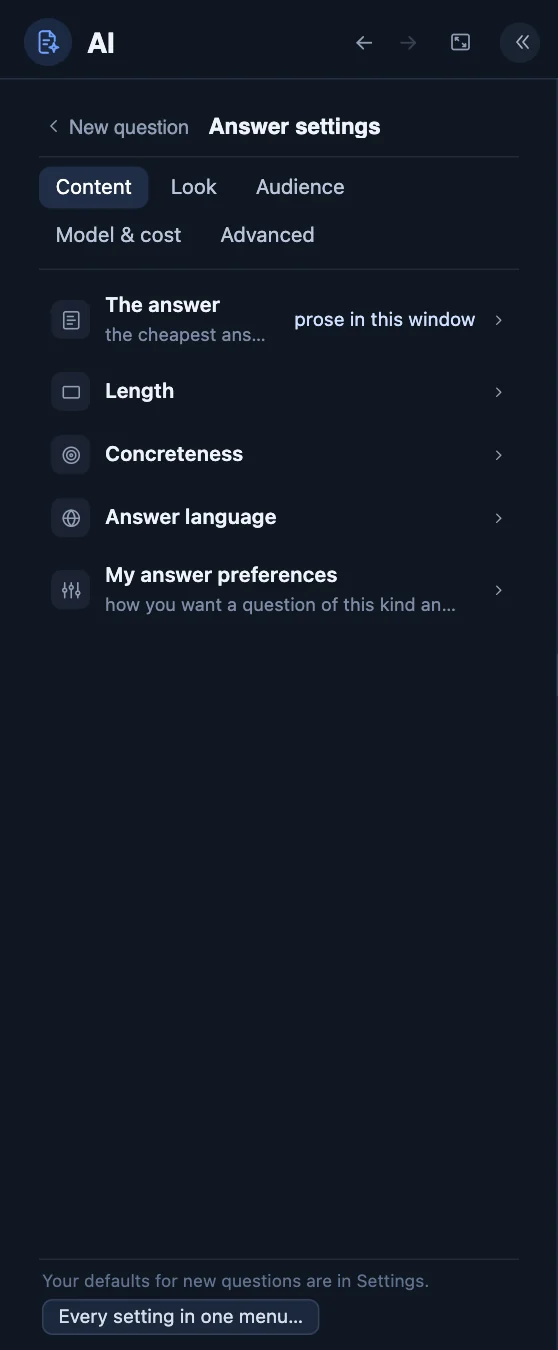
Answer settings, the last button after the chips, holds everything else, in tabs: the content, the look, who it is for, which AI answers. They take the whole list while they are open; ‹ takes you back. And the estimate beside Ask says what the answer should cost — press it for What will be sent.
Show more, or less
Three levels: Essential shows the few things you need to start, Complete shows everything. You can change at any moment.
Step 1
The level
On Home, the level you are at stands beside the title. Press it to show more, or less; with the sidebar unfolded, the same button is at its foot. Nothing is lost: a button that is not shown is still one press away, in ⋯.


Step 2
A window at the Essential level
A window's bar keeps a few buttons: Ask AI, Add to, ⋯ for the rest, and at its end Fill the workspace and Full screen.


Step 3
The same window at the Complete level
At the Complete level the bar stays as calm: Add to and ⋯ hold more. ⋯ ▸ Buttons in the bar takes out of the bar what you do not use and, at this level, lets you keep up to four more in view.


These pictures were taken from the app itself on 19 October 2026.